Wednesday, 10 August 2016

Java 8 installation and path setting


Install Java 8 from http://www.oracle.com/technetwork/java/javase/downloads/jdk8-downloads-2133151.html
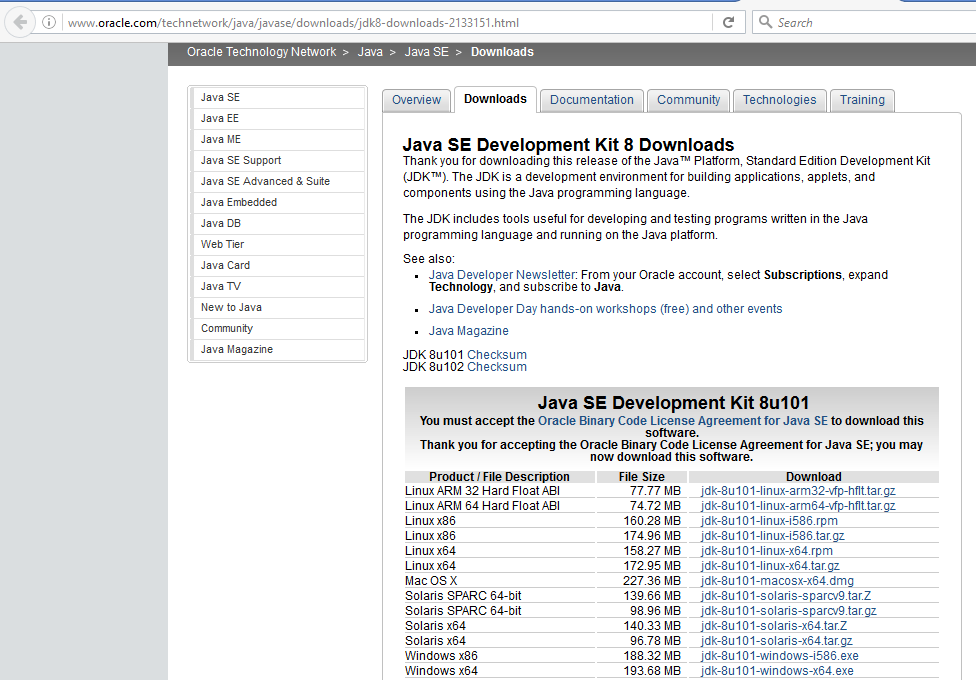
 Click 'jdk-8u101-windows-x64.exe' to install java 8 (64 bit) for Windows OS.


Click 'Save File'
Click downloaded 'jdk-8u101-windows-x64.exe' file to install.

Click 'Next' button.

Click 'Next' button.


Click 'Next' button.


Click 'Close' button.

Open the command prompt and type command 'java -version' and
verify java 8 path is set.
Note: In my machine java 7 is already installed and java 7 path is already set.

After executing the command 'java -version', if you can't view the 
java version as 1.8 that means java 8 path is not set.

 You can set the java 8 path in environment path.
Note: Above screenshot is captured from Windows 8 OS.

Click 'Advanced' tab.
Click 'Environment Variables' button.

Update the java path to java 8(if java path is set for older version of java). 
If you are setting the java path for first time, then you can create a new variable 'JAVA_HOME' and
 enter variable value referring the '<<Path of java 8 jdk>>'


Open the command prompt, if command prompt is already opened then close 
the command prompt and open the new command prompt.
After command prompt is opened, execute the command 'java -version'.
If java version 1.8 is displayed, that means java path is set to java 8.

Saturday, 28 May 2016

Negative scenarios for google search page

Access the url: www.google.com

1. Enter negative numbers and click search button.

    ex: '-12'

2. Special Characters
    ex: '#@$'

3. Lengthy Characters
   ex: aaaaaaaaaaaaaaaaaaaaaaaaaaaaaaaaaaaaaaaaaaaaaaaaaaaaaaaaaaaaaaaaaaaaaaaaaaaaaaaaaaaaaaaaaaaaaaaaaaaaaaaaaaaaaaaaaaaaaaaaaaaaaaaaaaaaaaaaaaaaaaaaaaaaaaaaaaaaaaaaaaaaaaaaaaaaaaaaaaaaaaaaaaaa


Search by voice:
Prerequisite: Microphone already connected to system.

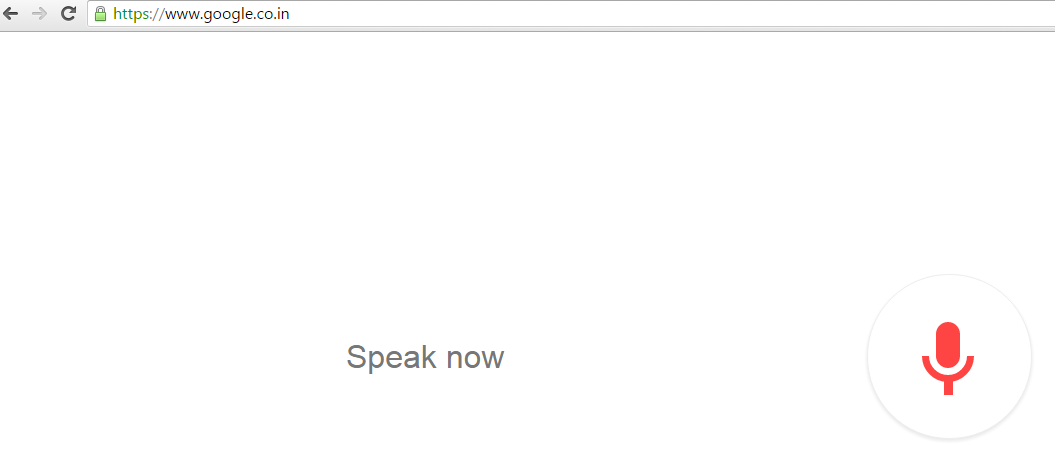
4. Click mic button and don't speak anything.


5. Blow air in the microphone, when 'Speak now' message is displayed.


Below are some of the negative scenarios, related to other functionalities.

Negative Scenarios for 'Lift':
1. Enter more than the specified person.
2. press stop before the destination.
3. press opposite button from the source. 
   ex: if on ground floor press down button and vice versa.
4. Bring obstacle when lift doors are about to close.
5. Power off when lift moving downwards.
    ex: 5th floor to 4th floor

Negative Scenarios for 'Glass of water':
- Check by filling the water greater than the capacity, it overflows or not ?
- Place the glass inverted and to fill the glass, water splits outside or not  ?

Wednesday, 18 May 2016

Eclipse IDE - Python Interpreter in Eclipse IDE Console

By following the below procedure you can use the 'Python Interpreter' in eclipse console(i.e. we can run the python commands directly in eclipse console).

Prerequisites:

1. Launch Eclipse IDE
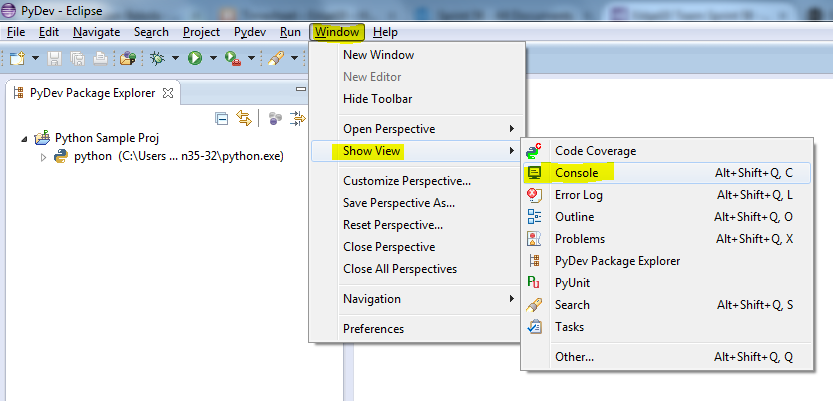
    Open 'Windows' --> 'Show View' --> 'Console' to access the console.

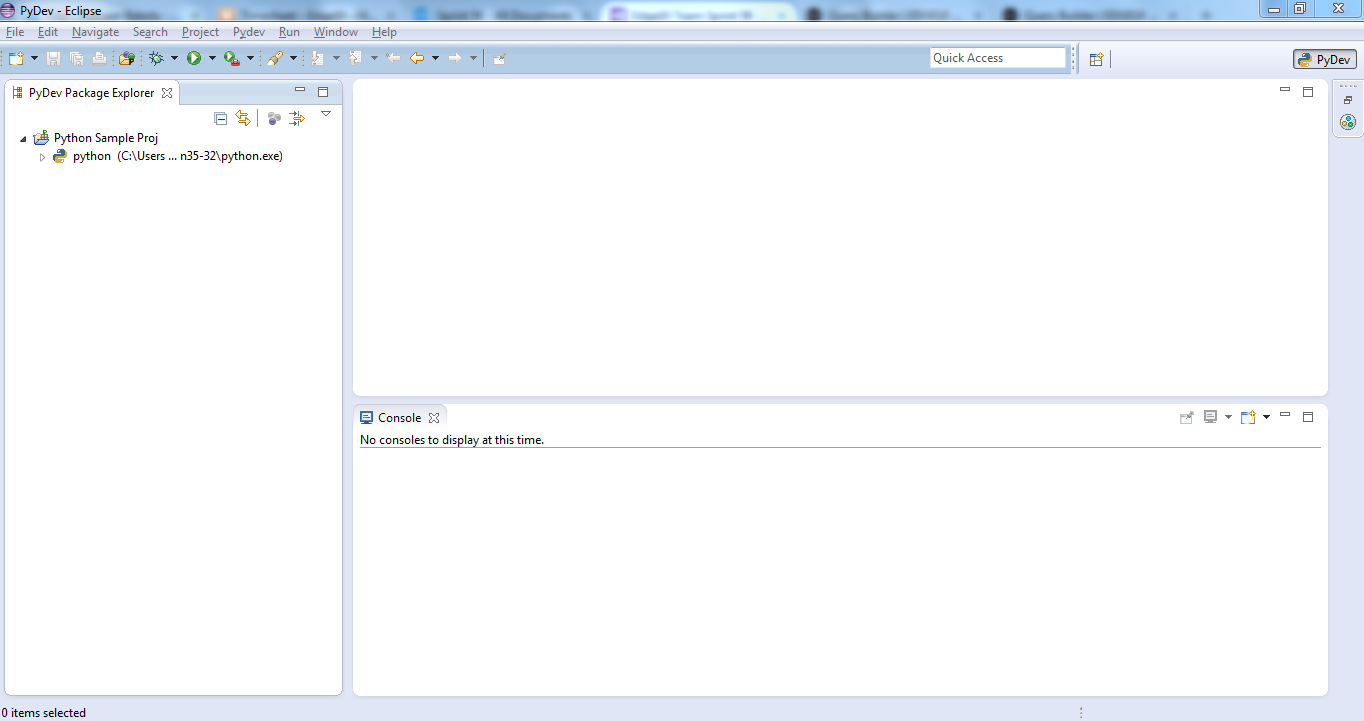
2. Console is opened.
    Note: No need of creating any python project, for executing the python commands in Eclipse IDE console.

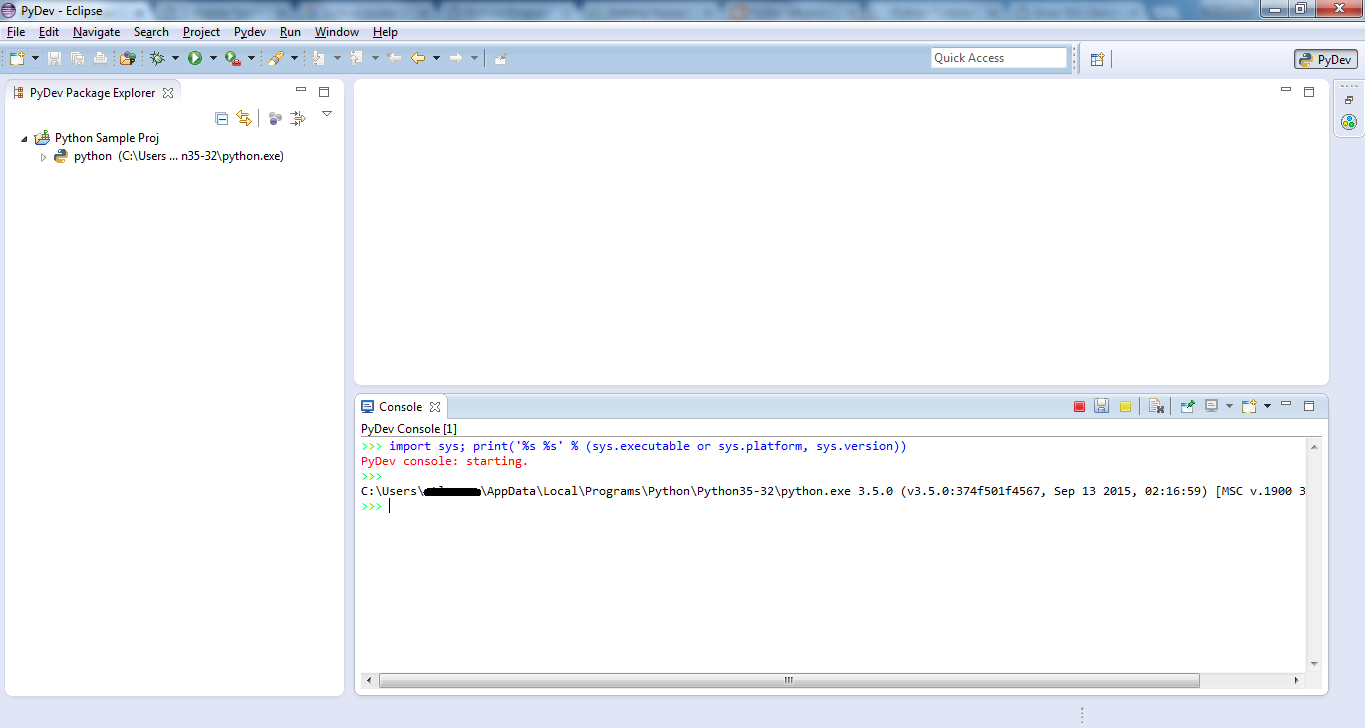
3. From 'Console' options select 'PyDev Console'.


Now you can see the Python Interpreter in Eclipse IDE console.

Type the commands in console to execute the python commands.

You can even maximize the console for better visibility.

Tuesday, 16 February 2016

wsdlbrowser for online WebServices testing

Access the url http://wsdlbrowser.com/

Enter WSDL url and click on 'Browse' button
ex: wsdl url "http://soaptest.parasoft.com/calculator.wsdl"

Select the WSDL function to perform
ex: 'multiply' function.


Request XML is displayed.


Enter 'x' and 'y' values and click 'Call function' button.


Result XML is displayed with the multiplication of 'x' and 'y' values.


Related Links:
Firefox 'SOA Client' plugin for web services testing
http://automation-home.blogspot.com/2016/02/firefox-soa-client-plugin-for-web-services-testing.html

Chrome browser 'Wizdler' extension to test Web Services.
http://automation-home.blogspot.com/2016/02/chrome-browser-wizdler-extension-to-test-webservices.html

Chrome browser 'Wizdler' extension to test Web Services

Open Chrome browser and search for 'Wizdler' extension.


Click 'ADD TO CHROME'


Click 'Add extension'.


Access wsdl url
ex: http://soaptest.parasoft.com/calculator.wsdl


In my case wsdl file is downloaded, some times you can directly access the wsdl functions after installing the 'Wizdler' extension in chrome browser.


Open the downloaded wsdl file in chrome browser.
You can see the 'Wizdler' icon in the address bar of the chrome browser.


Click on 'Wizdler' icon to know the functions provided in wsdl


Select the function
ex: 'substract'.


Request XML is provided.


Enter 'x' and 'y' values and click 'Go' button.


Response XML is displayed with the result (i.e substraction of 'x' and 'y' values)


Related Links:
wsdlbrowser for online WebServices testing
http://automation-home.blogspot.com/2016/02/wsdlbrowser-for-online-webservices.html

Firefox 'SOA Client' plugin for web services testing
http://automation-home.blogspot.com/2016/02/firefox-soa-client-plugin-for-web-services-testing.html

Friday, 12 February 2016

Firefox 'SOA Client' plugin for web services testing

Click 'Add to

Click 'Add to Firefox' button


Click 'Install' button.


Click 'Restart Now'.


Click 'ALT' + 'T' to open tools menu.
Select 'SOA Client' > 'Access Web Services'.


Enter WSDL url in 'WSDL Address' field and click 'Parse WSDL' button.
ex: wsdl url: http://soaptest.parasoft.com/calculator.wsdl


Select the WSDL function/method, provide 'x' and 'y' values and click 'Invoke' button.
ex: Operation: add


Response 12.0 (i.e additon of 5+7).
You can view the request xml in 'Raw Request Body' tab.


Simillarly you can view the response xml in 'Raw Response Body' tab.


Related Links:
Chrome browser 'Wizdler' extension to test Web Services.
http://automation-home.blogspot.com/2016/02/chrome-browser-wizdler-extension-to-test-webservices.html

wsdlbrowser for online WebServices testing
http://automation-home.blogspot.com/2016/02/wsdlbrowser-for-online-webservices.html