Showing posts with label Test Automation Framework. Show all posts

Thursday, 2 October 2014

DDF Workbook - Version 4.1 using TestNG 'DataProvider'

Test Data for multiple test cases be maintained in single excel sheet, can be used for small projects having few test cases/modules with less test data. Easy to maintain and update test data since all the test data resides in single excel sheet.

Issue in 4.0: 
DDF 4.0 supports maintaining test data for multiple test cases in a single excel sheet, but as the test data increases or decreases, test data configuration settings should be updated each time in the prog.   

Enhancement in 4.1:
In version 4.1 supports maintaining test data for multiple test cases in a single excel sheet, as the test data increases or decreases no need to update any configuration settings in the program, DDF will take care of the changes.

For information on other DDF versions click link DataDrivenFramework.

1. Prerequisite:
     i. Java 1.6
     ii. Eclipse IDE or any other Java IDE (ex: NetBeans IDE)
     iii. Set POI API jar files in java build path.
     iv. TestNG plugin should be configured in Eclipse IDE.
     v.  TestNG jar file in java build path.

     Download Apache POI, follow below process
     1. Goto url: http://poi.apache.org/
     2. Click on "download" link (i.e. http://poi.apache.org/download.html page opens)
     3. Click on "poi-bin-<<version>>.zip" link
     4. Select the mirror and download the "poi-<<version>>.zip"
     5. Extract the downloaded "poi-<<version>>.zip" file, next step is to set the java build path.

     Files required in java build path.
     1. poi-<<version>>.jar
     2. poi-ooxml-<<version>>.jar
     3. poi-ooxml-schemas-<<version>>.jar

     Open the "ooxml-lib" folder present in the extracted "poi-<<version>>.zip" file, set the below jar files in java build path.
     4. dom4j-<<version>>.jar
     5. xmlbeans-<<version>>.jar

     6. Download the  "DDF Version - 4.0.zip" from repository.
     7. Extract the "DDF Version - 4.0.zip" (zip file contains example programs and jar file).
     8. Set "AH-DDF-4.0.jar" in java build path.

Note:
'AH-DDF-<<Version>>.jar' is proprietary jar file, distributed for free.

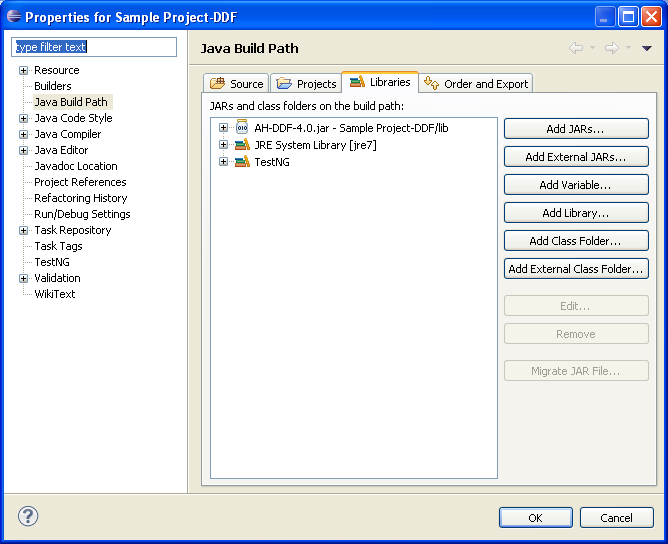
Java Build Path:

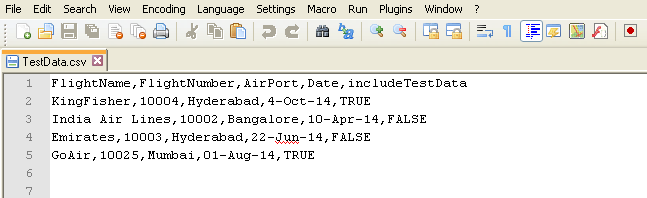
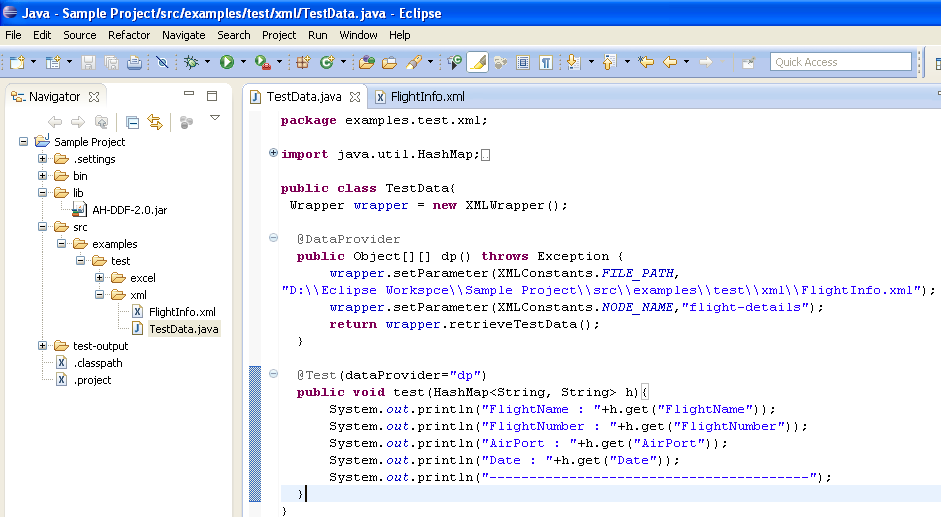
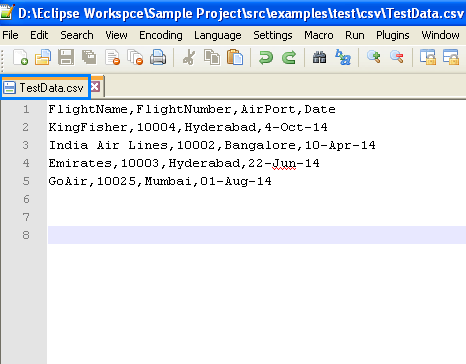
Test Data:

Sample Program:
package examples.TestNG_test.excel;

import java.io.File;
import java.util.HashMap;

import org.testng.annotations.DataProvider;
import org.testng.annotations.Test;

import automation_home.ddf.constants.ExcelConstants;
import automation_home.ddf.wrapper.Wrapper;
import automation_home.ddf.wrapperimpl.ExcelWrapper;

public class CustomPosition2_TestData{

 @DataProvider
 public Object[][] dp1() throws Exception {
 Wrapper wrapper = new ExcelWrapper();

 wrapper.setParameter(ExcelConstants.FILE_PATH, new File("").getAbsolutePath()+"\\src\\examples\\TestNG_test\\excel\\CustomPosition_2.xls");
 wrapper.setParameter(ExcelConstants.SHEET_NAME, "FlightInfo");

 wrapper.setParameter(ExcelConstants.TESTCASE_NAME, "TestCase1");
 wrapper.setParameter(ExcelConstants.TESTCASE_START_ELEMENT, "_Start");
 wrapper.setParameter(ExcelConstants.TESTCASE_END_ELEMENT, "_End");

    wrapper.setParameter(ExcelConstants.INCLUDE_TESTDATA_HEADER_NAME, "Execution");
    wrapper.setParameter(ExcelConstants.INCLUDE_TESTDATA_YES,"RUN");
    wrapper.setParameter(ExcelConstants.INCLUDE_TESTDATA_NO,"NO-RUN");
 return wrapper.retrieveTestData();
 }

 @Test(dataProvider="dp1", enabled=true)
 public void test1(HashMap<String, String> h){
 System.out.println("FlightName : "+h.get("FlightName"));
 System.out.println("FlightNumber : "+h.get("FlightNumber"));
 System.out.println("AirPort : "+h.get("AirPort"));
 System.out.println("Date : "+h.get("Date"));
 System.out.println("---------------------------------");
 }
  }

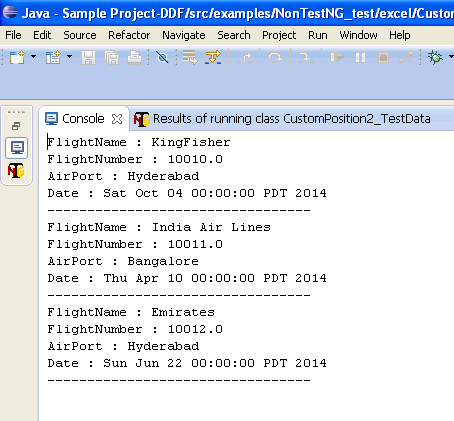
Output:

Click the link 'Watch Demo'.

<< Previous

DDF Workbook- Version 4.1

Test Data for multiple test cases be maintained in single excel sheet, can be used for small projects having few test cases/modules with less test data. Easy to maintain and update test data since all the test data resides in single excel sheet.

Current implementation of DataDrivenFramework can be integrated with any automation tool/api which supports java (ex: Java Webdriver, Openscript, Junit, etc).

Issue in 4.0: 
DDF 4.0 supports maintaining test data for multiple test cases in a single excel sheet, but as the test data increases or decreases, test data configuration settings should be updated each time in the prog.   

Enhancement in 4.1:
In version 4.1 supports maintaining test data for multiple test cases in a single excel sheet, as the test data increases or decreases no need to update any configuration settings in the program, DDF will take care of the changes.

For information on other DDF versions click link DataDrivenFramework.

1. Prerequisite:
     i. Java 1.6
     ii. Eclipse IDE or any other Java IDE (ex: NetBeans IDE)
     iii. Set POI API jar files in java build path.

     Download Apache POI, follow below process
     1. Goto url: http://poi.apache.org/
     2. Click on "download" link (i.e. http://poi.apache.org/download.html page opens)
     3. Click on "poi-bin-<<version>>.zip" link
     4. Select the mirror and download the "poi-<<version>>.zip"
     5. Extract the downloaded "poi-<<version>>.zip" file, next step is to set the java build path.

     Files required in java build path.
     1. poi-<<version>>.jar
     2. poi-ooxml-<<version>>.jar
     3. poi-ooxml-schemas-<<version>>.jar

     Open the "ooxml-lib" folder present in the extracted "poi-<<version>>.zip" file, set the below jar files in java build path.
     4. dom4j-<<version>>.jar
     5. xmlbeans-<<version>>.jar

     6. Download the  "DDF Version - 4.0.zip" from repository.
     7. Extract the "DDF Version - 4.0.zip" (zip file contains example programs and jar file).
     8. Set "AH-DDF-4.0.jar" in java build path.

Note:
'AH-DDF-<<Version>>.jar' is proprietary jar file, distributed for free.

Java Build Path:

Test Data:


Sample Program:
package examples.NonTestNG_test.excel;

import java.io.File;
import java.util.List;
import java.util.Map;

import automation_home.ddf.constants.ExcelConstants;
import automation_home.ddf.wrapper.Wrapper;
import automation_home.ddf.wrapperimpl.ExcelWrapper;

public class CustomPosition2_TestData{

public static void main(String[] args) throws Exception {
for(Map<String, String> h : configure()){
 System.out.println("FlightName : "+h.get("FlightName"));
 System.out.println("FlightNumber : "+h.get("FlightNumber"));
 System.out.println("AirPort : "+h.get("AirPort"));
 System.out.println("Date : "+h.get("Date"));
 System.out.println("---------------------------------");
 }
}

public static List<Map<String, String>> configure() throws Exception{
Wrapper wrapper = new ExcelWrapper();

 wrapper.setParameter(ExcelConstants.FILE_PATH, new File("").getAbsolutePath()+"\\src\\examples\\NonTestNG_test\\excel\\CustomPosition_2.xls");
 wrapper.setParameter(ExcelConstants.SHEET_NAME, "FlightInfo");

 wrapper.setParameter(ExcelConstants.TESTCASE_NAME, "TestCase2");
 wrapper.setParameter(ExcelConstants.TESTCASE_START_ELEMENT, "_Start");
 wrapper.setParameter(ExcelConstants.TESTCASE_END_ELEMENT, "_End");

   wrapper.setParameter(ExcelConstants.INCLUDE_TESTDATA_HEADER_NAME, "Execution");
   wrapper.setParameter(ExcelConstants.INCLUDE_TESTDATA_YES,"RUN");
   wrapper.setParameter(ExcelConstants.INCLUDE_TESTDATA_NO,"NO-RUN");

 List<Map<String, String>> list =  wrapper.retrieveData();
 return list;
}
}

Output:

Watch Demo


<< Previous

Sunday, 28 September 2014

DDF XML - Version 4.0

DDF 3.x version has only support for TestNG, with the DDF 4.0 version you can use DataDrivenFramework with out using TestNG API.

Current implementation of DataDrivenFramework can be integrated with any automation tool/api which supports java (ex: Java Webdriver, Openscript, etc). It can also be used as part of application development for reading the data from XML file.

For information on other DDF versions click link DataDrivenFramework.

1. Prerequisite:
     i. Java 1.6
     ii. Eclipse IDE or any other Java IDE (ex: NetBeans IDE)

2. Download the  "DDF Version - 4.0.zip" from repository.
3. Extract the "DDF Version - 4.0.zip" (zip file contains example programs and jar file).
4. Set "AH-DDF-4.0.jar" in java build path.

Note:
'AH-DDF-<<Version>>.jar' is proprietary jar file, distributed for free.

Java Build Path:

Test Data:

Sample Program:
package examples.Non_TestNG_test.xml;

import java.io.File;
import java.util.List;
import java.util.Map;

import automation_home.ddf.constants.XMLConstants;
import automation_home.ddf.wrapper.Wrapper;
import automation_home.ddf.wrapperimpl.XMLWrapper;

public class TestData {

/**
* @param args
* @throws Exception
*/
public static void main(String[] args) throws Exception {
for(Map<String, String> h : configure()){
 System.out.println("FlightName : "+h.get("FlightName"));
 System.out.println("FlightNumber : "+h.get("FlightNumber"));
 System.out.println("AirPort : "+h.get("AirPort"));
 System.out.println("Date : "+h.get("Date"));
 System.out.println("----------------------------------------");
 }
}

public static List<Map<String, String>> configure() throws Exception{
Wrapper wrapper = new XMLWrapper();

wrapper.setParameter(XMLConstants.FILE_PATH, new File("").getAbsolutePath()+"\\src\\examples\\Non_TestNG_test\\xml\\FlightInfo.xml");
wrapper.setParameter(XMLConstants.NODE_NAME, "flight-details");

 wrapper.setParameter(XMLConstants.INCLUDE_TESTDATA_HEADER_NAME, "TestInclude");
 wrapper.setParameter(XMLConstants.INCLUDE_TESTDATA_YES,"true");
 wrapper.setParameter(XMLConstants.INCLUDE_TESTDATA_NO,"false");

 List<Map<String, String>> list =  wrapper.retrieveData();
 return list;
}
}

Output:

Watch Demo

<< Previous

DDF CSV - Version 4.0

DDF 3.x version has only support for TestNG, with the DDF 4.0 version you can use DataDrivenFramework with out using TestNG API.

Current implementation of DataDrivenFramework can be integrated with any automation tool/api which supports java (ex: Java Webdriver, Openscript, etc). It can also be used as part of application development for reading the data from CSV file.

For information on other DDF versions click link DataDrivenFramework.

1. Prerequisite:
     i. Java 1.6
     ii. Eclipse IDE or any other Java IDE (ex: NetBeans IDE)

2. Download the  "DDF Version - 4.0.zip" from repository.
3. Extract the "DDF Version - 4.0.zip" (zip file contains example programs and jar file).
4. Set "AH-DDF-4.0.jar" in java build path.

Note:
'AH-DDF-<<Version>>.jar' is proprietary jar file, distributed for free.

Java Build Path:

Test Data:

Sample Program:
package examples.Non_TestNG_test.csv;

import java.io.File;
import java.util.List;
import java.util.Map;

import automation_home.ddf.wrapper.Wrapper;
import automation_home.ddf.constants.CsvConstants;
import automation_home.ddf.wrapperimpl.CsvWrapper;

public class TestData {

/**
* @param args
* @throws Exception
*/
public static void main(String[] args) throws Exception {
for (Map<String, String> h : configure()) {
System.out.println("FlightName : " + h.get("FlightName"));
System.out.println("FlightNumber : " + h.get("FlightNumber"));
System.out.println("AirPort : " + h.get("AirPort"));
System.out.println("Date : " + h.get("Date"));
System.out.println("----------------------------------------");
}
}

public static List<Map<String, String>> configure() throws Exception {
Wrapper wrapper = new CsvWrapper();

wrapper.setParameter(CsvConstants.FILE_PATH,
new File("").getAbsolutePath()
+ "\\src\\examples\\Non_TestNG_test\\csv\\TestData.csv");

wrapper.setParameter(CsvConstants.INCLUDE_TESTDATA_HEADER_NAME,
"includeTestData");
wrapper.setParameter(CsvConstants.INCLUDE_TESTDATA_YES, "TRUE");
wrapper.setParameter(CsvConstants.INCLUDE_TESTDATA_NO, "FALSE");

List<Map<String, String>> list = wrapper.retrieveData();
return list;
}
}

Output:

Watch Demo

<< Previous

DDF Workbook- Version 4.0

DDF 3.x version has only support for TestNG, with the DDF 4.0 version you can use DataDrivenFramework with out using TestNG API.

Current implementation of DataDrivenFramework can be integrated with any automation tool/api which supports java (ex: Java Webdriver, Openscript, etc). It can also be used as part of application development for reading the data from Excel file.

For information on other DDF versions click link DataDrivenFramework.

1. Prerequisite:
     i. Java 1.6
     ii. Eclipse IDE or any other Java IDE (ex: NetBeans IDE)
     iii. Set POI API jar files in java build path.

     Download Apache POI, follow below process
     1. Goto url: http://poi.apache.org/
     2. Click on "download" link (i.e. http://poi.apache.org/download.html page opens)
     3. Click on "poi-bin-<<version>>.zip" link
     4. Select the mirror and download the "poi-<<version>>.zip"
     5. Extract the downloaded "poi-<<version>>.zip" file, next step is to set the java build path.

     Files required in java build path.
     1. poi-<<version>>.jar
     2. poi-ooxml-<<version>>.jar
     3. poi-ooxml-schemas-<<version>>.jar

     Open the "ooxml-lib" folder present in the extracted "poi-<<version>>.zip" file, set the below jar files in java build path.
     4. dom4j-<<version>>.jar
     5. xmlbeans-<<version>>.jar

     6. Download the  "DDF Version - 4.0.zip" from repository.
     7. Extract the "DDF Version - 4.0.zip" (zip file contains example programs and jar file).
     8. Set "AH-DDF-4.0.jar" in java build path.

Note:
'AH-DDF-<<Version>>.jar' is proprietary jar file, distributed for free.

Java Build Path:


Test Data:

Sample Program:
package examples.Non_TestNG_test.xml;

import java.io.File;
import java.util.List;
import java.util.Map;

import automation_home.ddf.constants.XMLConstants;
import automation_home.ddf.wrapper.Wrapper;
import automation_home.ddf.wrapperimpl.XMLWrapper;

public class TestData {

/**
* @param args
* @throws Exception
*/
public static void main(String[] args) throws Exception {
for(Map<String, String> h : configure()){
 System.out.println("FlightName : "+h.get("FlightName"));
 System.out.println("FlightNumber : "+h.get("FlightNumber"));
 System.out.println("AirPort : "+h.get("AirPort"));
 System.out.println("Date : "+h.get("Date"));
 System.out.println("----------------------------------------");
 }
}

public static List<Map<String, String>> configure() throws Exception{
Wrapper wrapper = new XMLWrapper();

wrapper.setParameter(XMLConstants.FILE_PATH, new File("").getAbsolutePath()+"\\src\\examples\\Non_TestNG_test\\xml\\FlightInfo.xml");
wrapper.setParameter(XMLConstants.NODE_NAME, "flight-details");

 wrapper.setParameter(XMLConstants.INCLUDE_TESTDATA_HEADER_NAME, "TestInclude");
 wrapper.setParameter(XMLConstants.INCLUDE_TESTDATA_YES,"true");
 wrapper.setParameter(XMLConstants.INCLUDE_TESTDATA_NO,"false");

 List<Map<String, String>> list =  wrapper.retrieveData();
 return list;
}
}

Output:

Watch Demo

<< Previous

Sunday, 31 August 2014

Multiple set's of test data in single sheet

If you are new to the below information(i.e. using library 'AH-DDF-<<VERSION>>.jar') refer URL: http://automation-home.blogspot.in/2014/06/TestAutomationFrameWork.html

Follow below process for reading different sets of test data in single excel sheet.


Note: Header should be in String format, if the header content is not String format then convert into String format.

Sample Program:

package examples.test.excel;

import java.util.HashMap;

import org.testng.annotations.DataProvider;
import org.testng.annotations.Test;

import automation_home.ddf.constants.ExcelConstants;
import automation_home.ddf.wrapper.Wrapper;
import automation_home.ddf.wrapperimpl.ExcelWrapper;;

public class TestData2{

  @DataProvider
  public Object[][] dp1() throws Exception {
 Wrapper wrapper = new ExcelWrapper();
 wrapper.setParameter(ExcelConstants.FILE_PATH, "D:\\Eclipse Workspce\\Sample Project-DDF\\src\\examples\\test\\excel\\TestFile2.xls");
 wrapper.setParameter(ExcelConstants.SHEET_NAME, "FlightInfo1");

 wrapper.setParameter(ExcelConstants.INCLUDE_TESTDATA_HEADER_NAME, "Execution");
 wrapper.setParameter(ExcelConstants.INCLUDE_TESTDATA_YES,"RUN");
 wrapper.setParameter(ExcelConstants.INCLUDE_TESTDATA_NO,"NO-RUN");
 return wrapper.retrieveTestData();
  }

  @Test(dataProvider="dp1", enabled=true)
  public void test1(HashMap<String, String> h){
 System.out.println("FlightName : "+h.get("FlightName"));
 System.out.println("FlightNumber : "+h.get("FlightNumber"));
 System.out.println("AirPort : "+h.get("AirPort"));
 System.out.println("Date : "+h.get("Date"));
 System.out.println("----------------------------------------");
  }


  @DataProvider
  public Object[][] dp2() throws Exception {
 Wrapper wrapper = new ExcelWrapper();
 wrapper.setParameter(ExcelConstants.FILE_PATH, "D:\\Eclipse Workspce\\Sample Project-DDF\\src\\examples\\test\\excel\\TestFile2.xls");
 wrapper.setParameter(ExcelConstants.SHEET_NAME, "FlightInfo1");

 wrapper.setParameter(ExcelConstants.INCLUDE_TESTDATA_HEADER_NAME, "Execution");
 wrapper.setParameter(ExcelConstants.INCLUDE_TESTDATA_YES,"RUN");
 wrapper.setParameter(ExcelConstants.INCLUDE_TESTDATA_NO,"NO-RUN");

 wrapper.setParameter(ExcelConstants.INITIAL_POSITION, "9,0");
 return wrapper.retrieveTestData();
  }

  @Test(dataProvider="dp2", enabled=true)
  public void test2(HashMap<String, String> h){
 System.out.println("1 : "+h.get("1"));
 System.out.println("2 : "+h.get("2"));
 System.out.println("3 : "+h.get("3"));
 System.out.println("4 : "+h.get("4"));
 System.out.println("5 : "+h.get("5"));
 System.out.println("6 : "+h.get("6"));
 System.out.println("7 : "+h.get("7"));
 System.out.println("8 : "+h.get("8"));
 System.out.println("----------------------------------------");
  }


  @DataProvider
  public Object[][] dp3() throws Exception {
 Wrapper wrapper = new ExcelWrapper();
 wrapper.setParameter(ExcelConstants.FILE_PATH, "D:\\Eclipse Workspce\\Sample Project-DDF\\src\\examples\\test\\excel\\TestFile2.xls");
 wrapper.setParameter(ExcelConstants.SHEET_NAME, "FlightInfo1");

 wrapper.setParameter(ExcelConstants.INCLUDE_TESTDATA_HEADER_NAME, "Execution");
 wrapper.setParameter(ExcelConstants.INCLUDE_TESTDATA_YES,"RUN");
 wrapper.setParameter(ExcelConstants.INCLUDE_TESTDATA_NO,"NO-RUN");

 wrapper.setParameter(ExcelConstants.INITIAL_POSITION, "16,0");
 return wrapper.retrieveTestData();
  }

  @Test(dataProvider="dp3", enabled=true)
  public void test3(HashMap<String, String> h){
 System.out.println("TrainName : "+h.get("TrainName"));
 System.out.println("TrainNumber : "+h.get("TrainNumber"));
 System.out.println("Date : "+h.get("Date"));
 System.out.println("----------------------------------------");
  }

  @DataProvider
  public Object[][] dp4() throws Exception {
 Wrapper wrapper = new ExcelWrapper();
 wrapper.setParameter(ExcelConstants.FILE_PATH, "D:\\Eclipse Workspce\\Sample Project-DDF\\src\\examples\\test\\excel\\TestFile2.xls");
 wrapper.setParameter(ExcelConstants.SHEET_NAME, "FlightInfo1");

 wrapper.setParameter(ExcelConstants.INCLUDE_TESTDATA_HEADER_NAME, "Execution");
 wrapper.setParameter(ExcelConstants.INCLUDE_TESTDATA_YES,"RUN");
 wrapper.setParameter(ExcelConstants.INCLUDE_TESTDATA_NO,"NO-RUN");

 wrapper.setParameter(ExcelConstants.INITIAL_POSITION, "22,0");
 return wrapper.retrieveTestData();
  }

  @Test(dataProvider="dp4", enabled=true)
  public void test4(HashMap<String, String> h){
 System.out.println("a : "+h.get("a"));
 System.out.println("b : "+h.get("b"));
 System.out.println("c : "+h.get("c"));
 System.out.println("----------------------------------------");
  }
}

Output:

FlightName : India Air Lines
FlightNumber : 10011.0
AirPort : Bangalore
Date : Thu Apr 10 00:00:00 PDT 2014
----------------------------------------
FlightName : Emirates
FlightNumber : 10012.0
AirPort : Hyderabad
Date : Sun Jun 22 00:00:00 PDT 2014
----------------------------------------
1 : Emirates1
2 : 10012.0
3 : Hyderabad
4 : Sun Jun 22 00:00:00 PDT 2014
5 : Emirates
6 : 10012.0
7 : Hyderabad
8 : Sun Jun 22 00:00:00 PDT 2014
----------------------------------------
TrainName : MUMBAI EXPRESS
TrainNumber : 16332.0
Date : Sun Jun 22 00:00:00 PDT 2014
----------------------------------------
a : 3.0
b : 6.0
c : 7.0
----------------------------------------
PASSED: test1({AirPort=Bangalore, FlightName=India Air Lines, Date=Thu Apr 10 00:00:00 PDT 2014, FlightNumber=10011.0})
PASSED: test1({AirPort=Hyderabad, FlightName=Emirates, Date=Sun Jun 22 00:00:00 PDT 2014, FlightNumber=10012.0})
PASSED: test2({3=Hyderabad, 2=10012.0, 1=Emirates1, 7=Hyderabad, 6=10012.0, 5=Emirates, 4=Sun Jun 22 00:00:00 PDT 2014, 8=Sun Jun 22 00:00:00 PDT 2014})
PASSED: test3({TrainNumber=16332.0, Date=Sun Jun 22 00:00:00 PDT 2014, TrainName=MUMBAI EXPRESS})
PASSED: test4({b=6.0, c=7.0, a=3.0})

===============================================
    Default test
    Tests run: 5, Failures: 0, Skips: 0

===============================================

Note:
1. With the above approach as the data grow's more and more, value for parameter 'ExcelConstants.INITIAL_POSITION' should be updated.
2. Above approach works with "AH-DDF-3.0.4.jar" or higher version.

Download zip file "SingleExcelWithMultiData.zip" for sampe test data and source code for accessing testdata from repository.


Wednesday, 16 July 2014

DDF Workbook - Version 3.0.4

1. If you are new to the blog, watch below demo video's
        Click on the link DDF - Workbook Version-1.0 to watch the demo video.
        Click on the link DDF - Workbook Version-3.0.2  to watch the demo video.
2. Download the  "DDF Version - 3.0.4.zip" from repository.
3. Extract the "DDF Version - 3.0.4.zip"
4. Click the link for Prerequisite and Setup.

Note:
'AH-DDF-<<Version>>.jar' is proprietary jar file, distributed for free.

Issue in 3.0.3:
            It is mandatory to have initial position of test data in workbook should start from (Row = 0, Column = 0)  otherwise framework can't fetch the the test data from workbook.

Enhancement added in Version-3.0.4:
      In "Data Driven Framework - Workbook" version-3.0.4 initial position of the test data can be changed in workbook and same should be configured in the program.
> If you don't wish to change initial position of test data in workbook(i.e. 0,0) then no need of configuring initial position in test data, by default framework fetches the test data from workbook starting from position (0,0) in workbook.

> Set the "AH-DDF-3.0.4.jar" in java build path.

Initial position is configurable, refer below Figure-1.

   Figure 1

> Test data workbook file present in 'examples' folder at location "src\examples\test\excel\CustomIntialPosition.xls" 
> 'examples' folder is present in 'DDF Version - 3.0.4.zip' can be downloaded from repository

Note: You can perform the same operation (i.e. Initial position configuration) with ".xlsx" file also.

Program:
package examples.test.excel;
import java.util.HashMap;
import org.testng.annotations.DataProvider;
import org.testng.annotations.Test;
import automation_home.ddf.constants.ExcelConstants;
import automation_home.ddf.wrapper.Wrapper;
import automation_home.ddf.wrapperimpl.ExcelWrapper;;

public class CustomIntialPosition_TestData{
 Wrapper wrapper = new ExcelWrapper();

  @DataProvider
  public Object[][] dp() throws Exception {
   wrapper.setParameter(ExcelConstants.FILE_PATH, "D:\\V_Drive\\SW Testing\\WDriver\\DDF Proj V-3.0.4\\src\\examples\\test\\excel\\CustomIntialPosition.xls");
   wrapper.setParameter(ExcelConstants.SHEET_NAME, "FlightInfo");

   /*wrapper.setParameter(ExcelConstants.INCLUDE_TESTDATA_HEADER_NAME, "Execution");
   wrapper.setParameter(ExcelConstants.INCLUDE_TESTDATA_YES,"RUN");
   wrapper.setParameter(ExcelConstants.INCLUDE_TESTDATA_NO,"NO-RUN");
         */
   wrapper.setParameter(ExcelConstants.INITIAL_POSITION, "4,1");
   return wrapper.retrieveTestData();
  }

  @Test(dataProvider="dp")
  public void test(HashMap<String, String> h){
   System.out.println("FlightName : "+h.get("FlightName"));
   System.out.println("FlightNumber : "+h.get("FlightNumber"));
   System.out.println("AirPort : "+h.get("AirPort"));
   System.out.println("Date : "+h.get("Date"));
   System.out.println("----------------------------------------");
   }
}

Sample Program is present in 'examples' folder at location "src\examples\test\excel\CustomIntialPosition_TestData.java"
> 'examples' folder is present in 'DDF Version - 3.0.4.zip' can be downloaded from repository.

Output:
[TestNG] Running:
  C:\Users\pbeleda\AppData\Local\Temp\testng-eclipse--1415773696\testng-customsuite.xml

FlightName : KingFisher123
FlightNumber : 10010.0
AirPort : Hyderabad
Date : Sat Oct 04 00:00:00 IST 2014
----------------------------------------
FlightName : India Air Lines998
FlightNumber : 10011.0
AirPort : Bangalore
Date : Thu Apr 10 00:00:00 IST 2014
----------------------------------------
FlightName : Emirates332
FlightNumber : 10012.0
AirPort : Hyderabad
Date : Sun Jun 22 00:00:00 IST 2014
----------------------------------------
PASSED: test({Execution=RUN, AirPort=Hyderabad, FlightName=KingFisher123, Date=Sat Oct 04 00:00:00 IST 2014, FlightNumber=10010.0})
PASSED: test({Execution=NO-RUN, AirPort=Bangalore, FlightName=India Air Lines998, Date=Thu Apr 10 00:00:00 IST 2014, FlightNumber=10011.0})
PASSED: test({Execution=NO-RUN, AirPort=Hyderabad, FlightName=Emirates332, Date=Sun Jun 22 00:00:00 IST 2014, FlightNumber=10012.0})

===============================================
    Default test
    Tests run: 3, Failures: 0, Skips: 0
=============================================== 

Watch Demo

<< Previous

Thursday, 3 July 2014

DDF Workbook - Version 3.0.3

Issue in 3.0.2 : 
            If test data has duplicate header's then 'Data Driven Framework'(DDF) API doesn't throw any exception. DDF-API picks the test data from the highest column number in case if there are duplicate header names in the test data.

Fixed in Version-3.0.3:
     If test data has duplicate header's then 'Data Driven Framework'(DDF) API throws exception "Header Name '<<HEADER_NAME>>' should be unique."

1. Download the  "DDF Version - 3.0.3.zip" from repository.
2. Extract the "DDF Version - 3.0.3.zip"
3. Click the link for Prerequisite and Setup
4. If you are new to the blog, watch below demo video's
        Click on the link to watch the DDF - Workbook Version-1.0 video.
        Click on the link to watch the DDF - Workbook Version-3.0.2 video.

5. Set the "AH-DDF-3.0.3.jar" in java build path.
6. Set the <<POI>> API jar files in java build path, click on the link "Prerequisite and Setup" to set the mandatory <<POI>> jar files to be placed in the java build path.

                       Duplicate Header Name in test data, refer below Figure-1.
Figure-1

Source Code and results(i.e. exception) in console, refer below Figure-2.
 
Figure-2

<< Previous

DDF CSV - Version 3.0.3

Issue in 3.0.2 : 
            If test data has duplicate header's then 'Data Driven Framework'(DDF) API doesn't throw any exception. DDF-API picks the test data from the highest column number in case if there are duplicate header names in the test data.

Fixed in Version-3.0.3:
     If test data has duplicate header's then 'Data Driven Framework'(DDF) API throws exception "Header Name '<<HEADER_NAME>>' should be unique."

1. Download the  "DDF Version - 3.0.3.zip" from repository.
2. Extract the "DDF Version - 3.0.3.zip"
3. Click the link for Prerequisite and Setup
4. If you are new to the blog, watch below demo video's
        Click on the link to watch the DDF - CSV Version-3.0 video.
        Click on the link to watch the DDF - CSV Version-3.0.2 video.

5. Set the "AH-DDF-3.0.3.jar" in java build path.

                       Duplicate Header Name in test data, refer below Figure-1.
Figure-1

Source Code and results(i.e. exception) in console, refer below Figure-2.
Figure-2

<< Previous

DDF XML- Version 3.0.3

Issue in 3.0.2 : 
    If test data has duplicate XML elements then 'Data Driven Framework'(DDF) API doesn't throw any exception, DDF-API picks the test data from the highest XML element row/line in case if there are duplicate xml elements in the test data.

Fixed in Version-3.0.3:
     If test data has duplicate element's then 'Data Driven Framework'(DDF) API throws exception "XML element '<<ELEMENT_NAME>>' should be unique.".

1. Download the  "DDF Version - 3.0.3.zip" from repository.
2. Extract the "DDF Version - 3.0.3.zip"
3. Click the link for Prerequisite and Setup
4. If you are new to the blog, watch below demo video's
        Click on the link to watch the DDF - XML Version-2.0 video.
        Click on the link to watch the DDF - XML Version-3.0.2 video.

5. Set the "AH-DDF-3.0.3.jar" in java build path.

                       Duplicate Element Name in test data, refer below Figure-1.
Figure-1

Source Code and results(i.e. exception) in console, refer below Figure-2.
Figure-2

<< Previous

Monday, 23 June 2014

DDF CSV- Version 3.0.2


Download the  "DDF Version - 3.0.2.zip" from repository.
If you are new to the blog, click on the link to watch the DDF - CSV Version-3.0 video.

1. Extract the "DDF Version - 3.0.2.zip"
2. Click the link for Prerequisite and Setup
3. If you are new to the blog, click on the link to watch the DDF - CSV Version-3.0 video.

Version-3.0 :
            While working "Data Driven Framework - CSV" version 3.0, there is no configurable header for specifying ignore/include test data while processing the test data.
             
Enhancement added in Version-3.0.2:
      In "Data Driven Framework - CSV" version-3.0.2 "<<TestInclude>>" header in test data file is configurable and also optional.

> "<<TestInclude>>" header name in test data file is configurable.
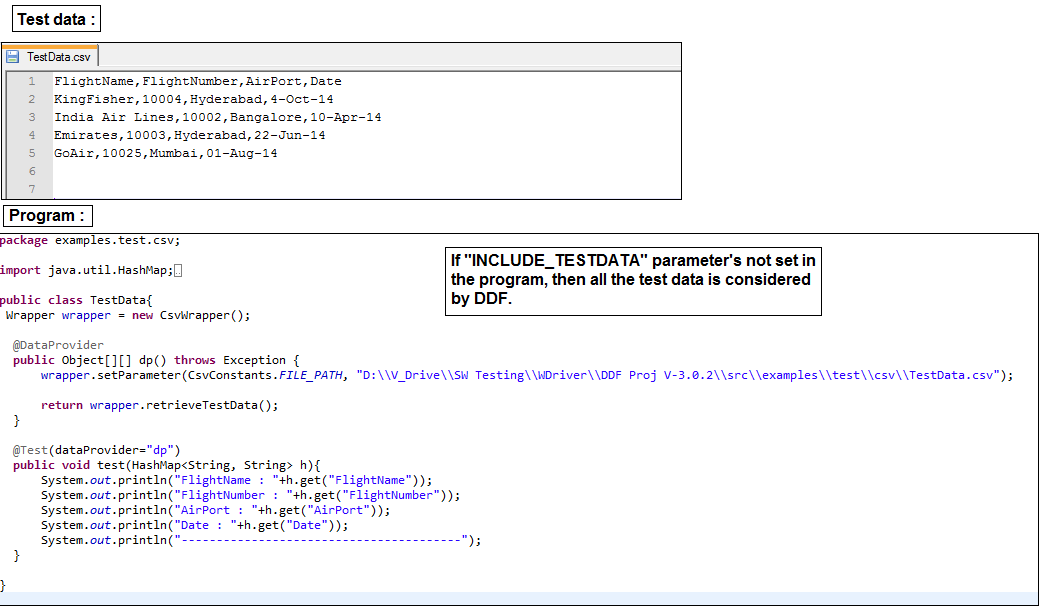
> Values for "<<TestInclude>>" is configurable.
> "<<TestInclude>>" is optional, user can configure based on the requirement (or) ignore.

> Set the "AH-DDF-3.0.2.jar" in java build path.

Header name is configurable, refer below screenshot 'Figure-1'.
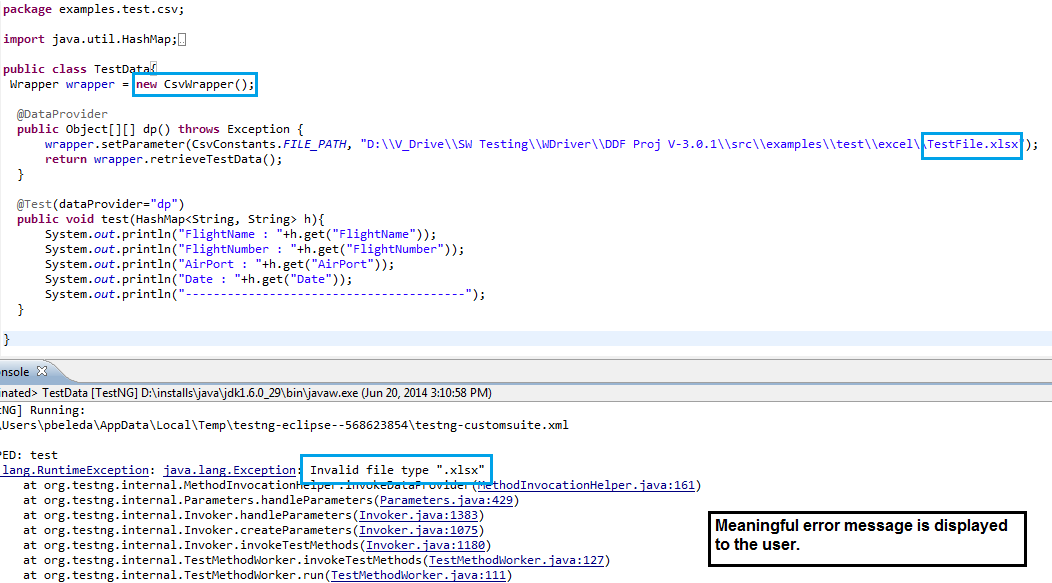
Figure 1

Without using the Header Name in the test data file, refer below screenshot 'Figure-2'.

Figure-2

Watch Demo  

<< Previous

Data Driven Framework XML - Version 3.0.2


Download the  "DDF Version - 3.0.2.zip" from repository.
If you are new to the blog, click on the link to watch the DDF - XML Version-2.0 video.

1. Extract the "DDF Version - 3.0.2.zip"
2. Click the link for Prerequisite and Setup
3. If you are new to the blog, click on the link to watch the DDF - XML Version-2.0 video.

Version-2.0 :
            While working "Data Driven Framework - XML" version 2.0, there is no configurable xml element for specifying ignore/include test data while processing the test data.
             
Enhancement added in Version-3.0.2:
      In "Data Driven Framework - XML" version-3.0.2 "<<TestInclude>>" header name element in test data file is configurable and also optional.

1. "<<TestInclude>>" xml element in test data file is configurable.
2. Values for "<<TestInclude>>" is configurable.
3. "<<TestInclude>>" is optional, user can configure based on the requirement (or) ignore.

Set the "AH-DDF-3.0.2.jar" in java build path.

                       Header name element is configurable, refer below Figure-1.
Figure 1

Without using the Header Name element in the test data file, refer below Figure-2.
Figure-2

Watch Demo


<< Previous

DDF Workbook - Version 3.0.2

Download the  "DDF Version - 3.0.2.zip" from repository.
If you are new to the blog, click on the link to watch the DDF - Workbook Version-1.0 video

1. Extract the "DDF Version - 3.0.2.zip"
2. Click the link for Prerequisite and Setup
3. If you are new to the blog, click on the link to watch the DDF - Workbook Version-1.0 video

Version-1.0 : 
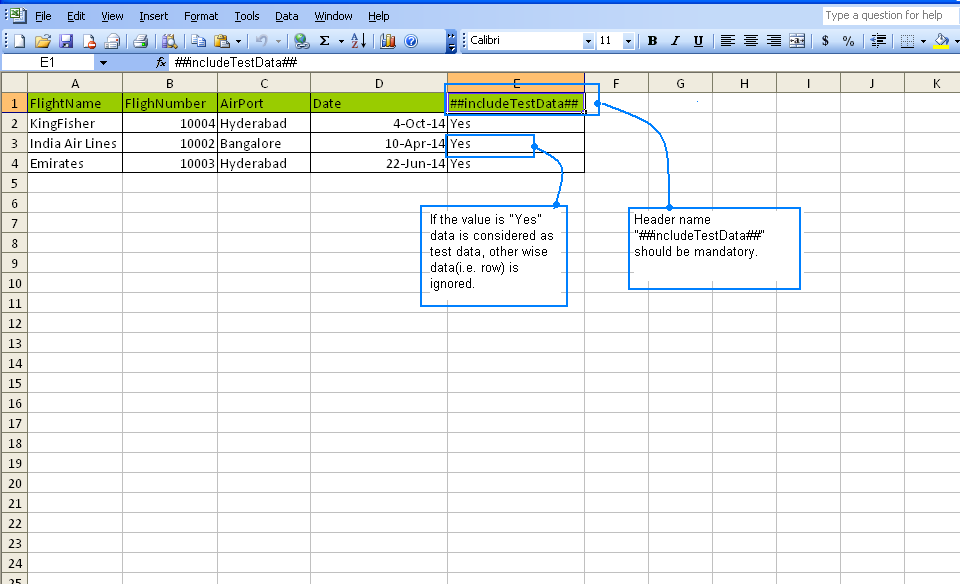
            While working with "Data Driven Framework - Workbook" version 1.0,  "##includeTestData##" header name is mandatory to be specified in the test data file(i.e. .xls/.xlsx file) as the header name and its value's are not configurable. DDF-Workbook API forces the user to use "##includeTestData##" header name in the test data file.

> "##includeTestData##" header name in test data file is not configurable.
> Values for "##includeTestData##" is not configurable.
> It's mandatory to provide "##includeTestData##" header in test data file.
             
Enhancement added in Version-3.0.2:
      In "Data Driven Framework - Workbook" version-3.0.2 "##includeTestData##" header name in test data file is configurable, "##includeTestData##" is made as optional field.

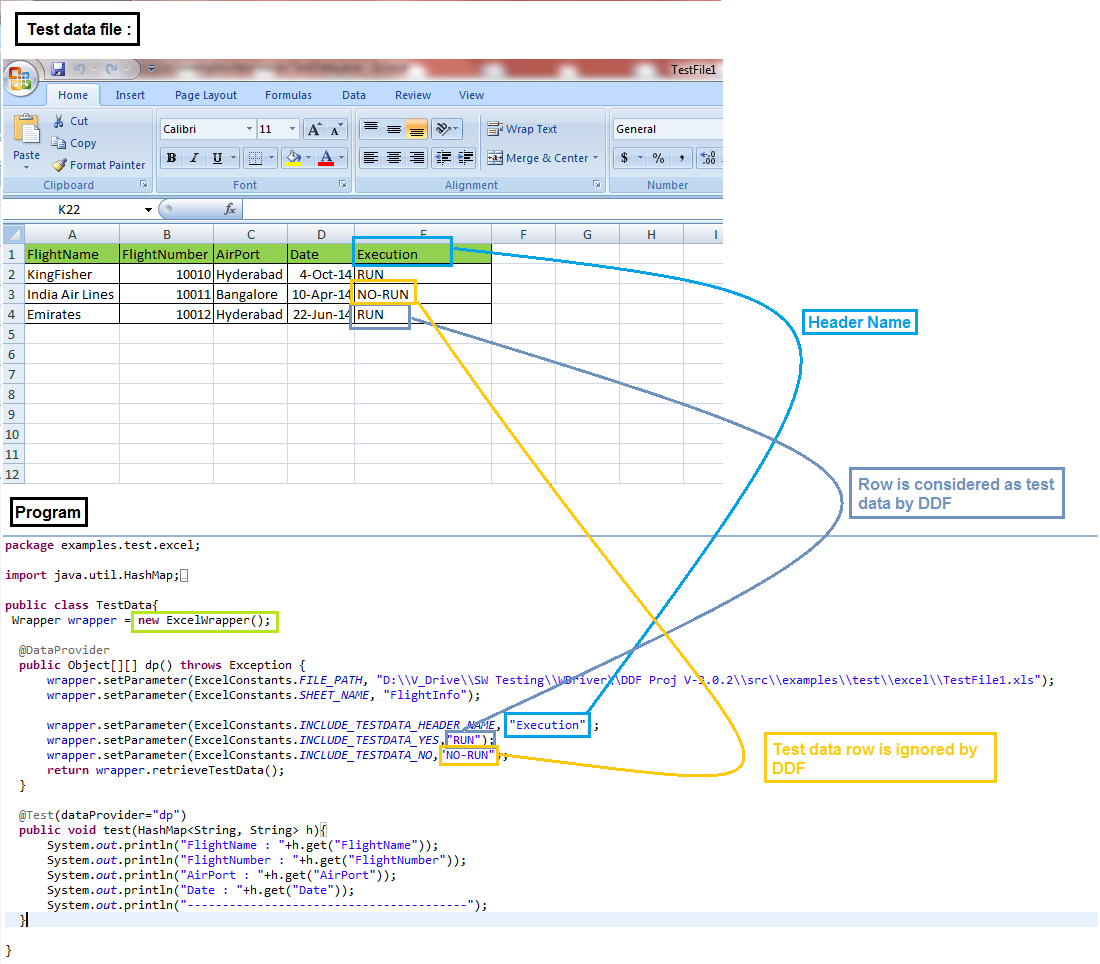
> "##includeTestData##" header name in test data file is configurable.
> Values for "##includeTestData##" is configurable.
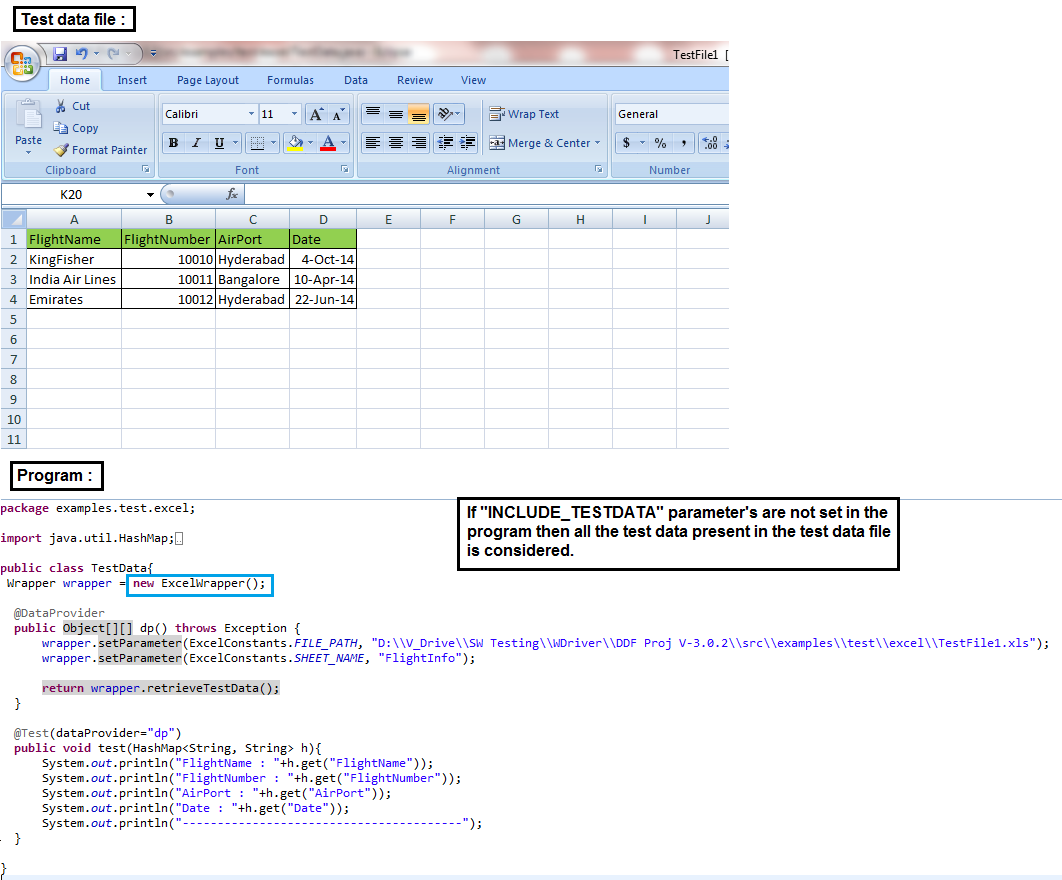
> "##includeTestData##" is optional, user can configure based on the requirement (or) ignore.

> Set the "AH-DDF-3.0.2.jar" in java build path.

                       Header name is configurable, refer below Figure-1.
     
Figure 1

Without using the Header Name in the test data file, refer below Figure-2.
    
Figure-2

Watch Demo

<< Previous

Thursday, 19 June 2014

DDF Workbook - Version 1.0

Download the  "DDF Version - 1.0.zip" from repository.
Click the link for Prerequisites.

1. Extract the "DDF Version - 1.0.zip"
2. Set "AH-DDF-1.0.jar" in the java build path.
3. Copy the "examples" folder into the "src" folder of Eclipse IDE.
4. Update the workbook file path in "TestData.java" present at "\src\examples\test\excel\TestData.java"

Test Data File:


Program:


Watch Demo

<< Previous

DDF XML - Version 2.0

Download the  "DDF Version - 2.0.zip" from repository.
1. Extract the "DDF Version - 2.0.zip"
2. Click the link for Prerequisite and Setup.


Watch Demo


<< Previous

DDF XML - Version 3.0.1

Download the  "DDF Version - 3.0.1.zip" from repository.
If you are new to the blog, click on the link to watch the DDF - XML Version-2.0 video.

1. Extract the "DDF Version - 3.0.1.zip"
2. Click the link for Prerequisite and Setup.
3. If you are new to the blog, click on the link to watch the DDF - XML Version-2.0 video

Issue in Version-3.0 :
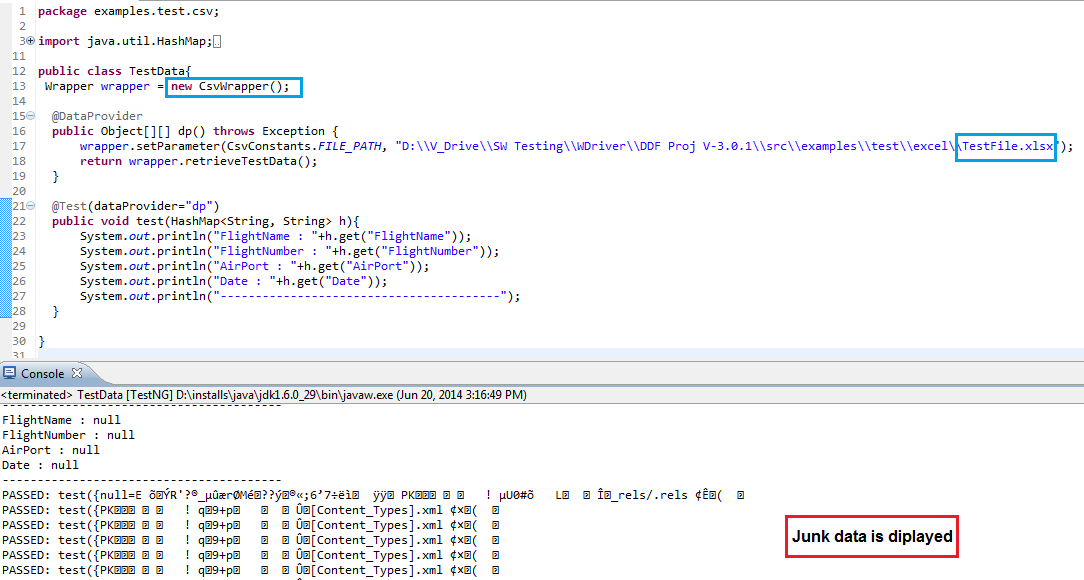
         When user tries to fetch the test data using "Data Driven Framework - XML", by mistake if wrong file type is set as parameter to read the test data. Framework doesn't read test data, by looking into the eclipse ide console it is difficult to trace the root cause of the issue. Since the "Data Driven Framework - XML" doesn't validate the test data file type.


Fixed in Version-3.0.1:
"Data Driven Framework - CSV" validates the file type passed as parameter is valid or not.

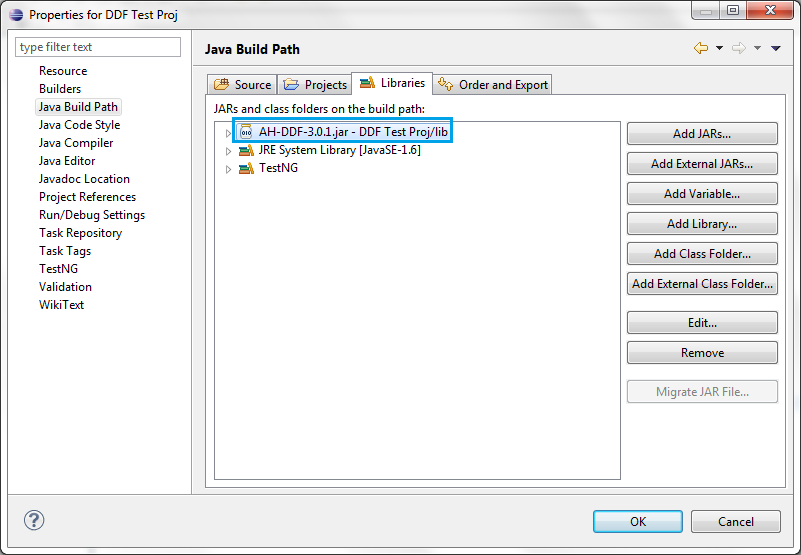
Set the "AH-DDF-3.0.1.jar" in java build path.

Example Program:
 

<< Previous

DDF CSV - version 3.0

Download the  "DDF Version - 3.0.zip" from repository.
1. Extract the "DDF Version - 3.0.zip"
2. Click the link for Prerequisite and Setup.


Watch Demo


<< Previous

DDF CSV - Version 3.0.1

Download the  "DDF Version - 3.0.1.zip" from repository.
If you are new to the blog, click on the link to watch the DDF - CSV Version-3.0 video.

1. Extract the "DDF Version - 3.0.1.zip"
2. Click the link for Prerequisite and Setup.
3. If you are new to the blog, click on the link to watch the DDF - CSV Version-3.0 video.

Issue in Version-3.0 :
When user tries to fetch the test data using "Data Driven Framework - CSV", by mistake if wrong file type is set as parameter to read the test data. Framework doesn't read test data, by looking into the eclipse ide console it is difficult to trace the root cause of the issue. Since the "Data Driven Framework - CSV" doesn't validate the test data file type.


Fixed in Version-3.0.1 :
"Data Driven Framework - CSV" validates the file type passed as parameter is valid or not.

Set the "AH-DDF-3.0.1.jar" in java build path.


Example Program:


<< Previous

Tuesday, 17 June 2014

Data Driven Framework - CSV


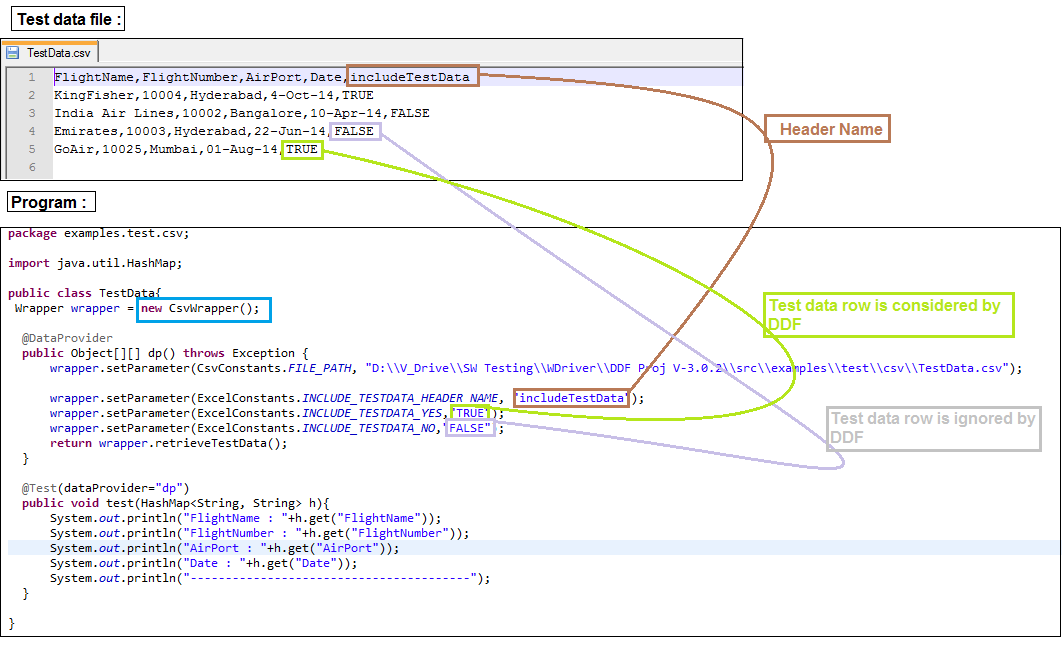
"Data Driven Framework(DDF) for CSV" reads the test data from CSV file.
DDF CSV Wrapper doesn't depend on other jar files.

Prerequisite:
1. Java 1.6
2. Eclipse IDE
3. Eclipse IDE configured with TestNG Plugin.

Set the java build path for jar file, follow the below steps:
1. Download the  "AH-DDF-<<Version>>.zip" from repository.
2. Extract the "AH-DDF-<<Version>>.zip"
3. Extracted "AH-DDF-<<Version>>.zip" contains the "docs", "release notes", "AH-DDF-<<Version>>.jar" and "examples".
4. Set "AH-DDF-<<Version>>.jar" in the java build path.

Working with example program:
5. Copy the "examples" folder present in the extracted "AH-DDF-<<Version>>.zip" file into the "src" folder of Eclipse IDE project.
6. Update the CSV file path in "TestData.java" present at "\src\examples\test\csv\TestData.java"

Execution:
7. Execute the "TestData.java"
> Open the "TestData.java"
> Right click in the eclipse ide(i.e. in "TestData.java")
> Select the menu "Run As" --> "TestNG Test"
> "TestData.java" is executed by "TestNG API" with the help of "TestNG Plugin" configured in Eclipse IDE (Pre-requisite: TestNG Plugin is configured for Eclipse IDE).

Results (or) output is displayed in the Console.
8. To see the console click on "Windows" menu --> "Show View" --> "Console"

DDF-CSV  Versions
Click the below links to access the pages.
DDF CSV - Version 3.0.3
DDF CSV - Version 3.0.2
DDF CSV - Version 3.0.1
DDF CSV - Version 3.0

<< Previous

Wednesday, 11 June 2014

Data Driven Framework - XML


"Data Driven Framework(DDF) for XML" reads the test data from XML file.
DDF XML Wrapper doesn't depend on other jar files.

Prerequisite:
1. Java 1.6
2. Eclipse IDE
3. Eclipse IDE configured with TestNG Plugin.

Set the java build path for jar file, follow the below steps:
1. Download the  "AH-DDF-<<Version>>.zip" from repository.
2. Extract the "AH-DDF-<<Version>>.zip"
3. Extracted "AH-DDF-<<Version>>.zip" contains the "docs", "release notes", "AH-DDF-<<Version>>.jar" and "examples".
4. Set "AH-DDF-<<Version>>.jar" in the java build path.

Working with example program:
5. Copy the "examples" folder present in the extracted "AH-DDF-<<Version>>.zip" file into the "src" folder of Eclipse IDE project.
6. Update the XML file path in "TestData.java" present at "\src\examples\test\xml\TestData.java"

Execution:
7. Execute the "TestData.java"
> Open the "TestData.java"
> Right click in the eclipse ide(i.e. in "TestData.java")
> Select the menu "Run As" --> "TestNG Test"
> "TestData.java" is executed by "TestNG API" with the help of "TestNG Plugin" configured in Eclipse IDE (Pre-requisite: TestNG Plugin is configured for Eclipse IDE).

8. Results (or) output is displayed in the Console.
> To see the console click on "Windows" menu --> "Show View" --> "Console"


DDF XML  Versions
Click the below links to access the pages.
DDF - Version 3.0.3 
DDF - Version 3.0.2 
DDF - Version 3.0.1 
DDF - Version 2.0 

<< Previous