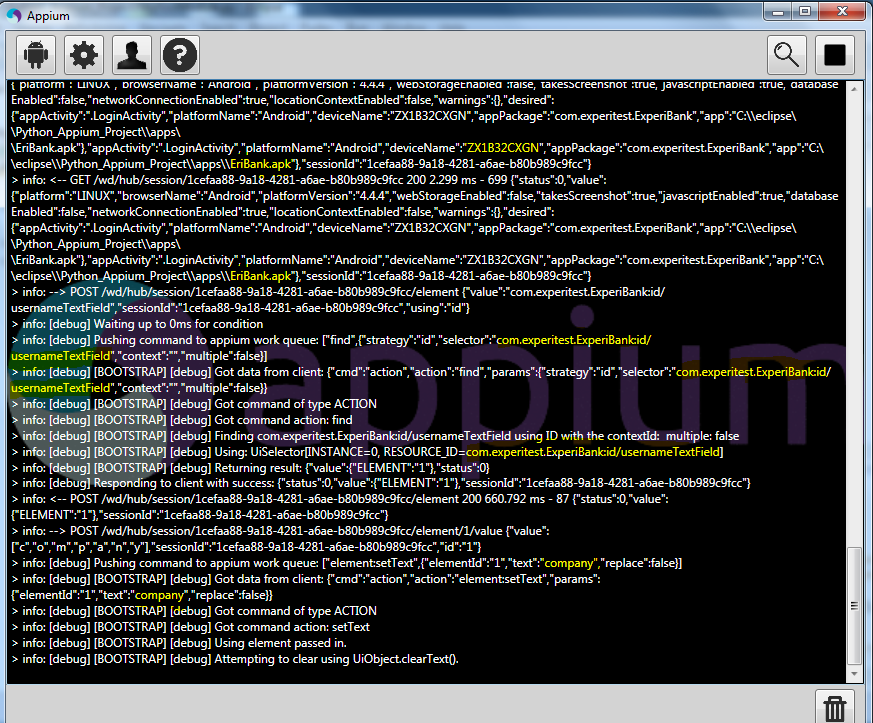
Demonstrating python automation script for 'EriBank' app and executing the automation script in mobile device using Eclipse IDE with Python.
Prerequisites:
- Java is installed.
- Set path for Java.
- Android SDK is installed.
- Set path for Android SDK.
- Appium Server is installed.
- Python is installed
- Eclipse IDE is installed.
- Install Pydev Extenstions for Eclipse IDE
- Install mobile device drivers.
Refer below url's for installation/configuration.
http://automation-home.blogspot.in/2015/05/appium-installation.html
http://automation-home.blogspot.in/2014/12/python-installation.html
http://automation-home.blogspot.in/2014/12/installing-pydev-extenstions.html
http://automation-home.blogspot.in/2014/12/executing-simple-python-programs.html
http://automation-home.blogspot.com/2015/12/installing-eribank-app-in-android-mobile.html
- Developer Options are enabled in mobile device
- USB Debugging is enabled in mobile device
Note:
'Eribank.apk' can be downloaded from 'http://code.google.com/p/eribank/downloads/list'
Below procedure demonstrates installing Selenium and Appium packages in python:




Before running the python-appium script, run the command 'adb devices' in command prompt and verify android mobile device is detected by android sdk on your machine.


Prerequisites:
- Java is installed.
- Set path for Java.
- Android SDK is installed.
- Set path for Android SDK.
- Appium Server is installed.
- Python is installed
- Eclipse IDE is installed.
- Install Pydev Extenstions for Eclipse IDE
- Install mobile device drivers.
Refer below url's for installation/configuration.
http://automation-home.blogspot.in/2015/05/appium-installation.html
http://automation-home.blogspot.in/2014/12/python-installation.html
http://automation-home.blogspot.in/2014/12/installing-pydev-extenstions.html
http://automation-home.blogspot.in/2014/12/executing-simple-python-programs.html
http://automation-home.blogspot.com/2015/12/installing-eribank-app-in-android-mobile.html
- USB Debugging is enabled in mobile device
Note:
'Eribank.apk' can be downloaded from 'http://code.google.com/p/eribank/downloads/list'
Below procedure demonstrates installing Selenium and Appium packages in python:
Navigate to 'Scripts' folder present in the python installation folder.
Run command 'pip install selenium' for installing latest selenium package.

Run command 'pip install Appium-Python-Client' for installing latest selenium package.


Place the 'EriBank.apk' file in python project.


Sample Program:
'''
Created on 01-Dec-2015
@author:
'''
import os
import unittest
from appium import webdriver
from time import sleep
class EriBankTest(unittest.TestCase):
def setUp(self):
"Setup for the test"
desired_caps = {}
desired_caps['platformName'] = 'Android'
#desired_caps['platformVersion'] = '4.2'
desired_caps['deviceName'] = 'ZX1B32CXGN'
desired_caps['app'] = os.path.abspath(os.path.join(os.path.dirname(__file__),'apps/EriBank.apk'))
desired_caps['appPackage'] = 'com.experitest.ExperiBank'
desired_caps['appActivity'] = '.LoginActivity'
self.driver = webdriver.Remote('http://localhost:4723/wd/hub', desired_caps)
pass
def tearDown(self):
"Tear down the test"
self.driver.quit()
pass
def testLoginAndLogout(self):
self.driver.find_element_by_id("com.experitest.ExperiBank:id/usernameTextField").send_keys("company")
self.driver.find_element_by_id("com.experitest.ExperiBank:id/passwordTextField").send_keys("company")
self.driver.find_element_by_id("com.experitest.ExperiBank:id/loginButton").click()
sleep(5)
self.driver.find_element_by_id("com.experitest.ExperiBank:id/logoutButton").click()
sleep(5)
pass
if __name__ == "__main__":
import sys;sys.argv = ['', 'Test.EriBankTest']
unittest.main()
Start 'Appium Server' before running the script.