Showing posts with label Appium. Show all posts

Tuesday, 19 January 2016

Java Appium - Performing Drag and Drop

Download 'Drag and Drop' demo app from play store.


Click 'INSTALL' button.


Click 'ACCEPT' button.


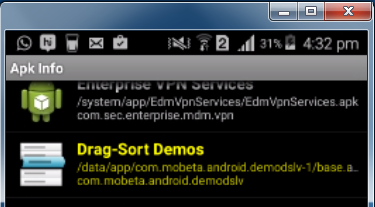
Launch 'ApkInfo' app to identify 'appPackage' and  'appActivity' of  'Drag-Sort Demos' app.

To know more about 'Apk Info' app watch the below video
http://automation-home.blogspot.com/2015/05/appium-java-executing-appium-webdriver-script.html


If you are new to Appium watch the video demo's present at
 

Sample Program:

import io.appium.java_client.AppiumDriver;
import io.appium.java_client.TouchAction;
import io.appium.java_client.android.AndroidDriver;

import java.net.MalformedURLException;
import java.net.URL;
import java.util.List;
import java.util.concurrent.TimeUnit;

import org.openqa.selenium.By;
import org.openqa.selenium.WebElement;
import org.openqa.selenium.remote.DesiredCapabilities;

public class DragAndDropTest {
    public static void main(String[] args) throws MalformedURLException, InterruptedException {
        AppiumDriver driver;

        DesiredCapabilities capabilities = new DesiredCapabilities();
        capabilities.setCapability("deviceName", "392c8ab5");
        capabilities.setCapability("platformVersion", "4.4.4");
      
//below statement is commented.
//I have already installed 'Drag-Sort Demos' app in my android device,
//so iam not installing the 'Drag-Sort Demos' app through appium for performing automation        //capabilities.setCapability("app",System.getProperty("user.dir")+"<<PATH of APK file>>");
      
        capabilities.setCapability("appPackage", "com.mobeta.android.demodslv");
        capabilities.setCapability("appActivity", ".Launcher");

        driver = new AndroidDriver(new URL("http://127.0.0.1:4723/wd/hub"),
                capabilities);
         driver.manage().timeouts().implicitlyWait(15, TimeUnit.SECONDS);
      

        driver.findElementByName("Basic usage playground").click();
      
        List<WebElement> elements = driver.findElements(By.id("com.mobeta.android.demodslv:id/drag_handle"));
        WebElement srcPos = elements.get(4);
        WebElement dstPos = elements.get(0);

        TouchAction ta = new TouchAction(driver);
        ta.longPress(srcPos).moveTo(dstPos).release();
        ta.perform();
      
            Thread.sleep(4000);
        driver.quit();
    }
}

Wednesday, 23 December 2015

Appium - Differences in executing the web automation script in Mobile and PC.

Below video demo demonstrates differences for web automation in mobile and pc.

Below script can be executed in mobile and pc.
Sample Program:
import java.net.MalformedURLException;
import java.net.URL;

import org.openqa.selenium.By;
import org.openqa.selenium.WebDriver;
import org.openqa.selenium.chrome.ChromeDriver;
import org.openqa.selenium.remote.DesiredCapabilities;
import org.openqa.selenium.remote.RemoteWebDriver;

import io.appium.java_client.remote.MobileCapabilityType;

public class SampleBrowserTest {
   
 public static void main(String[] args) throws MalformedURLException, InterruptedException {

  String sourceToTest = "mobile";
 
  WebDriver driver = sourceToTest.equals("mobile") ? getAppiumDriverForChrome() : getWebDriverForChrome();     
  driver.get("http://www.google.com");  

  driver.findElement(By.id("lst-ib")).sendKeys("java");
  driver.findElement(By.className("sbico")).click();
  //driver.findElement(By.xpath("//h3/a")).click();

  driver.quit();
 }

 private static WebDriver getWebDriverForChrome(){
     System.setProperty("webdriver.chrome.driver", System.getProperty("user.dir")+"//drivers//chromedriver.exe");
     return new ChromeDriver();
 }

 private static WebDriver getAppiumDriverForChrome() throws MalformedURLException{
    
     DesiredCapabilities capabilities = new DesiredCapabilities();
     capabilities.setCapability(MobileCapabilityType.DEVICE_NAME,"");
     //capabilities.setCapability(MobileCapabilityType.PLATFORM_VERSION, "4.4.4");
     capabilities.setCapability(MobileCapabilityType.BROWSER_NAME,"Chrome");
     capabilities.setCapability(MobileCapabilityType.PLATFORM_NAME, "Android");
    
     return new RemoteWebDriver(new URL("http://127.0.0.1:4723/wd/hub"), capabilities);
 }

}
 

Above script can be re-written using 'AppiumDriver', but the script can be executed only in mobile web.
Sample Program:
import java.net.MalformedURLException;
import java.net.URL;

import org.openqa.selenium.By;
import org.openqa.selenium.remote.DesiredCapabilities;

import io.appium.java_client.AppiumDriver;
import io.appium.java_client.android.AndroidDriver;
import io.appium.java_client.remote.MobileCapabilityType;

public class SampleBrowserTest {
   
 public static void main(String[] args) throws MalformedURLException, InterruptedException {
      AppiumDriver driver = null;     
 
  try{
      driver =  getAppiumDriverForChrome();
      driver.get("http://www.google.com");  
      Thread.sleep(2000);
      driver.findElement(By.id("lst-ib")).sendKeys("java");
      driver.findElement(By.className("sbico")).click();
      //driver.findElement(By.xpath("//h3/a")).click();
     
  }finally{
      if(driver!=null){
          driver.quit(); 
      }
     
  }
 
 }

 private static AppiumDriver  getAppiumDriverForChrome() throws MalformedURLException{
   
     DesiredCapabilities capabilities = new DesiredCapabilities();
     capabilities.setCapability(MobileCapabilityType.DEVICE_NAME,"");
     //capabilities.setCapability(MobileCapabilityType.PLATFORM_VERSION, "4.4.4");
     capabilities.setCapability(MobileCapabilityType.BROWSER_NAME,"Chrome");
     capabilities.setCapability(MobileCapabilityType.PLATFORM_NAME, "Android");
    
     return new AndroidDriver(new URL("http://127.0.0.1:4723/wd/hub"), capabilities);   
 }

}

Saturday, 19 December 2015

Execute protractor script on real android device using Appium


Prerequisite: 
1. Protractor is already installed.
    Protractor installation steps http://automation-home.blogspot.com/2015/11/protractor-installation.html

3. Java JDK can be downloaded and installed from       http://www.oracle.com/technetwork/java/javase/downloads/jdk8-downloads-2133151.html

4. Set the Environment variable for JAVA
    https://docs.oracle.com/javase/tutorial/essential/environment/paths.html 
    http://www.javatpoint.com/how-to-set-path-in-java

5. Install Android SDK

6. Set the Environment variable for Android SDK.

7. Configuring 'Protractor' in 'WebStorm IDE'.
     Running the 'Protractor' script in 'WebStorm'.
     http://automation-home.blogspot.com/2015/11/configuring-protractor-in-webstorm.html

8. Install Appium Server for windows os.

9. Install Phone Drivers

10. Enable Developer options in the mobile device.

11. Enable USB Debugging in Mobile Device.
    http://automation-home.blogspot.com/2015/12/enable-developer-options.html


Protractor script and configuration changes:
1. Copy 'todo-spec.js' and 'conf.js' from url http://www.protractortest.org/#/

2. Modify the 'conf.js' to include the appium configuration.
Conf.js:
exports.config = {
    seleniumAddress: 'http://localhost:4723/wd/hub',
    specs: ['todo-spec.js'],

    capabilities: {
        browserName: 'chrome',
        platformName: 'android',
        //platformVersion: '',
        deviceName: ''
    }
};

4. Connect real android device to your PC.

5. Run 'adb devices' and verify abd detects your android mobile device.

6. Launch Appium Server

7. Execute the protractor script.
        - Protractor script is executed on your real android device.

Thursday, 17 December 2015

Appium - Run appium script on real android device remotely through Wi-Fi

1. Connect android device to your PC via USB.

2. Run the command 'adb devices' in command prompt.
       Verify adb is able to detect your android device.

3. Execute the command 'adb tcpip 5555'
        adb will be restarted to work over tcpip

4. Disconnect your android device from PC(i.e. remove USB connection).

5. Type below command in command prompt.
        adb connect <<IP Address of your mobile device>>

6. Type command 'adb devices', this will display the devices connected(i.e. remotely)

7. Execute the appium script now.

8. You can see the appium script is executed on real android device over Wi-Fi.

Note:
 Make sure your PC and android device is accessing same network.
 In the below video session, EriBank app is already installed in android device.

Watch Demo

Wednesday, 16 December 2015

Set the Path for Android SDK

Prerequisite:
Install Android SDK

Copy the path of android sdk location in your PC.


Right click on 'Computer' icon and click 'Properties'.
 

Click 'Advanced System Settings'.
Click on 'Advanced' tab.
Click on 'Environment Variables' button.
 

Click ''New' button under 'System Variable'.
Variable name: 'ANDROID_HOME'
Variable value: <<Path of android sdk installation folder>>
                         ex: C:\Users\<<user>>\AppData\Local\Android\sdk
Click 'OK' button.
 

Edit path in system variable.


Append below text in the 'Path' variable.
%ANDROID_HOME%\tools;%ANDROID_HOME%\platform-tools;

Select 'Path' in 'System variables'.
Click on 'Edit' button.
Variable value: <<already existing path>>;%ANDROID_HOME%\tools;%ANDROID_HOME%\platform-tools;
Click 'OK' button.
 

Click 'Windows' + 'R'


Enter 'cmd' in command prompt.


Command prompt is opened.


Check android sdk path is set by typing the command 'adb version' in command prompt and press enterkey.


Monday, 14 December 2015

Enable Developer Options

Below are the steps to enable 'Developer Options' on Android.

1. Open
    Settings > About device > Scroll down to 'Build number'.
2. Tap 'Build number' for seven times to enable developer options
      Finally you can see message "Developer mode has been enabled." on your android screen.
3. Go back to 'Settings', you can see the 'Developer options' as part of settings.
4. Now enable 'USB debugging'.
     Settings > Developer options
     Check the check box for USB debugging, to enable the USB debugging.

Watch Demo

Friday, 29 May 2015

Appium C# - Executing 'Appium-Webdriver' automation script on mobile device

This session demonstrates automating the script for 'EriBank' app and executing the automation script in mobile device using Visual Studio with C#.

Prerequisites:
- Java is installed
- Set path for Java
- Android SDK is installed
- Set path for Android SDK
- Appium Server is installed

  Refer below url's for installation/configuration.
  http://automation-home.blogspot.in/2015/05/appium-installation.html 
  http://automation-home.blogspot.com/2015/05/appium-uiautomatorviewer.html

- Developer Options are enabled in mobile device
- USB Debugging is enabled in mobile device

Note: 
  'Eribank.apk' can be downloaded from 'http://code.google.com/p/eribank/downloads/list'

Video Session covers below topics:
- Visual Studio

Adding Webdriver, JSON.net and Appium to the references.
- Webdriver 
- JSON.net
- Appium

- Inspecting the locators/elements in the mobile device app(.apk)

Watch Demo

Sample Program:
using System;
using System.Collections.Generic;
using System.Linq;
using System.Text;
using System.Threading.Tasks;
using OpenQA.Selenium;
using OpenQA.Selenium.Support.UI;
using System.Threading;
using OpenQA.Selenium.Remote;
using OpenQA.Selenium.Appium;
using OpenQA.Selenium.Appium.Android;

namespace ERiBankTest
{
    class Program
    {
        static void Main(string[] args)
        {
            AppiumDriver driver;
            Console.WriteLine("Executing Appium Script");

            DesiredCapabilities capabilities = new DesiredCapabilities();
            capabilities.SetCapability("deviceName", "Test");
            capabilities.SetCapability("platformVersion", "4.4.4");
            capabilities.SetCapability("platformName", "Android");

            capabilities.SetCapability("appPackage", "com.experitest.ExperiBank");
            capabilities.SetCapability("appActivity", ".LoginActivity");

            driver = new AndroidDriver(new Uri("http://127.0.0.1:4723/wd/hub"), capabilities);

            //userName - com.experitest.ExperiBank:id/usernameTextField            driver.FindElement(By.Id("com.experitest.ExperiBank:id/usernameTextField")).SendKeys("company");

            //pwd- com.experitest.ExperiBank:id/passwordTextField      driver.FindElement(By.Id("com.experitest.ExperiBank:id/passwordTextField")).SendKeys("company");

            //login- com.experitest.ExperiBank:id/loginButton
            driver.FindElement(By.Id("com.experitest.ExperiBank:id/loginButton")).Click();

            //logout - com.experitest.ExperiBank:id/logoutButton
            driver.FindElement(By.Id("com.experitest.ExperiBank:id/logoutButton")).Click();

            Thread.Sleep(5000);
            driver.Quit();
        }
    }
}

Thursday, 21 May 2015

Appium Java - Executing 'Appium-Webdriver' automation script on mobile device

This session demonstrates automating the script for 'EriBank' app and executing the automation script in mobile device.

Prerequisites(previous session):
Watch the video sessions in the below URL's
1. http://automation-home.blogspot.in/2015/05/appium-installation.html
2. http://automation-home.blogspot.com/2015/05/appium-overview-deviceversions-and-apilevels.html
3. http://automation-home.blogspot.com/2015/05/appium-uiautomatorviewer.html

Video Session covers below topics:
- Automating EriBank App
- Authoring script without using Junit/TestNG
- Capabilities
   * deviceName
   * platformVersion
   * app
      - capabilities.setCapability("app",System.getProperty("user.dir")+"/apk/EriBank.apk");
   * appPackage
   * appActivity
- AndroidDriver (in earlier version it is 'AppiumDriver')
   * driver = new AndroidDriver(new URL("http://127.0.0.1:4723/wd/hub"), capabilities);
- Executing the automation script in the mobile device.

Sample Program:
package pack1;
import java.net.MalformedURLException;
import java.net.URL;
import org.openqa.selenium.By;
import org.openqa.selenium.remote.DesiredCapabilities;
import io.appium.java_client.AppiumDriver;
import io.appium.java_client.android.AndroidDriver;

public class TestEriBank {
public static void main(String[] args) throws MalformedURLException, InterruptedException {
        AppiumDriver driver;
     
        DesiredCapabilities capabilities = new DesiredCapabilities();
capabilities.setCapability("deviceName","");
//capabilities.setCapability("platformVersion", "4.4.4");
capabilities.setCapability("app",System.getProperty("user.dir")+"/apk/EriBank.apk");

capabilities.setCapability("appPackage", "com.experitest.ExperiBank");
capabilities.setCapability("appActivity", ".LoginActivity");

driver = new AndroidDriver(new URL("http://127.0.0.1:4723/wd/hub"), capabilities);

driver.findElement(By.id("com.experitest.ExperiBank:id/usernameTextField")).sendKeys("company");
driver.findElement(By.id("com.experitest.ExperiBank:id/passwordTextField")).sendKeys("company");
driver.findElement(By.id("com.experitest.ExperiBank:id/loginButton")).click();

driver.findElement(By.id("com.experitest.ExperiBank:id/logoutButton")).click();

Thread.sleep(3000);
driver.quit();
}
}

Note: 
   For executing the above program 'apk' folder should be created in the eclipse project and 'EriBank.apk' file should be placed in the 'apk' folder of the eclipse project.
   'Eribank.apk' can be downloaded from 'http://code.google.com/p/eribank/downloads/list'
 
Watch Demo

Friday, 15 May 2015

Appium

1. Appium Installation.
    http://automation-home.blogspot.com/2015/05/appium-installation.html

2. Appium overview, device versions and api levels. 
    http://automation-home.blogspot.com/2015/05/appium-overview-deviceversions-and-apilevels.html

3. Appium uiautomatorviewer.
    http://automation-home.blogspot.com/2015/05/appium-uiautomatorviewer.html

4. Enable 'Developer options' and 'USB debugging' on android mobile.
    http://automation-home.blogspot.com/2015/12/enable-developer-options.html

5. Installing 'EriBank' app in android device.
    http://automation-home.blogspot.com/2015/12/installing-eribank-app-in-android-mobile.html

6 Appium Java - Executing 'Appium-Java' automation script on real android mobile device.
    http://automation-home.blogspot.com/2015/05/appium-java-executing-appium-webdriver-script.html

7. Appium C# - Executing 'Appium-C#' automation script on real android mobile device.
    http://automation-home.blogspot.com/2015/05/appium-csharp-executing-script.html

8. Appium Python - Executing 'Appium-Python' automation script on real android mobile device.
    http://automation-home.blogspot.com/2015/12/python-executing-appium-script.html

9. Appium Protractor - Executing 'Appium-Protractor' automation script on real android mobile device.
    http://automation-home.blogspot.com/2015/12/execute-protractor-script-on-real-using-appium.html

10. Appium Java - Run appium script on real android device remotely through Wi-Fi
    http://automation-home.blogspot.com/2015/12/run-appium-script-on-real-android-device-through-wifi.html

11. Appium Java - Differences in executing the web automation script in Mobile and PC.
      http://automation-home.blogspot.com/2015/12/differences-in-executing-web-automation-script-in-mobile-and-pc.html

12. Mirror Android Phone to your computer using Androidscreencast.
     http://automation-home.blogspot.com/2015/12/androidscreencast.html

13. Android mobile automation - USB Troubleshooting
      http://automation-home.blogspot.com/2016/01/android-mobile-automation-USB-Troubleshooting.html

14. Appium Java - Performing Drag and Drop.
     
http://automation-home.blogspot.com/2016/01/java-appium-performing-drag-and-drop.html  

Appium - uiautomatorviewer

This session demonstrates inspecting/identifying the elements in the mobile device app.

Previous session:
 - Appium Overview, device versions and API Levels
   http://automation-home.blogspot.com/2015/05/appium-overview-deviceversions-and-apilevels.html

Video Session covers below topics:
Downloading and installing mobile device app(.apk file) in Android Device:
    - downloading app from Playstore.
    - downloading the app from mobile web browser.
        ex: Eribank app

Un-installing the the apps from the mobile device:
    - un-installing the app using Application Manager
    - un-installing the app using Playstore   
   
Inspecting the locators/elements in the mobile device app(.apk):        
    Prerequisites:
        Android SDK is installed.
        JAVA JDK Installed.
        Set the environment path for android sdk and java sdk.
        Mobile Device is connected to the PC.
        Developer options are activated in the mobile device.
        USB Debugging is enabled in the mobile device.
            http://automation-home.blogspot.in/2015/05/appium-installation.html   

Launching 'uiautomatorviewer'.   
    - Inspect the elements/objects in the mobile device app using 'uiautomatorviewer'.
    - If mobile app page changes, then you need to reload the mobile device view in the 'uiautomatorviewer'. 

Watch Demo

Thursday, 14 May 2015

Wednesday, 13 May 2015

Appium - Installation

Appium is an opensource test automation tool to work with native, hybrid and mobile web apps.

Appium Softwares: 
Below are the bunch of software's and configuration's need to be done to work with APPIUM automation tool.

1. JDK 

2. Download Eclipse IDE


4. Install Android SDK

5. Set the Environment variable for Android SDK.
6. Install Appium Server for windows os.

7. Download the Appium java client jar file.

8. Download the Selenium Webdriver java client jar file.

9. Install Phone Drivers

10. Enable Developer options in the mobile device.
11. Enable USB Debugging in Mobile Device.
    http://automation-home.blogspot.com/2015/12/enable-developer-options.html

Watch Demo