Sunday, 22 November 2015

Protractor - Jasmine

Prerequisites:

Jasmine is installed by default when 'protractor' is installed(protractor can be installed by using the command 'npm install -g protractor').

Jasmine is a BDD(Behavior Driven Development) framework for testing the JavaScript code.

Suites: 'describe' your tests,
'describe' jasmine function has two parameters 
- string : Describes the spec suite 'name' or 'title' 
- function : Function contains code for implementing the suite.

Specs: Specs are defined by using the jasmine function 'it', 
'it' jasmine function has two parameters
- string : specifies the 'title' of the spec.
- function : Function is the actual test.

'describe' and 'it' both contains the necessary code block to execute and implement the test,
Ex:
describe("Suite Name/Suite Description", function() {
  it("Spec Title/Spec Description", function() {
    expect(true).toBe(true);
  });
});

Variables declared in 'describe' block are available to any 'it' block.
Ex:
describe("Suite Name/Suite Description", function() {
  var flag;

  it("Spec Title/Spec Description", function() {
    flag = true;

    expect(flag).toBe(true);
  });
});


Expectations:
'expect' function takes the 'actual' value, chained with 'matcher' function(matcher function takes 'expected' value).

Matchers:
Performs the boolean comparison between 'actual' and 'expected' values, jasmine will 'pass' or 'fail' spec based on the matcher comparison.

Below are some of the Jasmine Matchers:
- not                    - toBeTruly
- toBe                  - toBeFalsy
- toEqual              - toContain
- toMatch               - toBeLessThan
- toBeDefined       - toBeGreaterThan
- toBeUndefined   - toBeCloseTo
- toBeNull              - toThrow

Below are some of the Jasmine functions:
- describe          - it
- beforeEach     - afterEach
- beforeAll         - afterAll
- xdescribe        - xit
- spyOn

Protractor - Installation

Prerequisites:
Node.js and NPM is already installed.
http://automation-home.blogspot.in/2015/05/installing-nodejs-and-npm-on-windows.html

Java JDK installation:
http://www.oracle.com/technetwork/java/javase/downloads/jdk8-downloads-2133151.html

Set the Path for Java JDK
https://docs.oracle.com/javase/tutorial/essential/environment/paths.html
http://www.javatpoint.com/how-to-set-path-in-java

Below steps demonstrates installing and setting up protractor 

Open command prompt and type 'npm install -g protractor'  


Above command(i.e npm install -g protractor) will install two things 
- Protractor and
- webdriver-manager 

Verify 'protractor' is installed properly.
run the command 'protractor --version'


'webdriver-manager' is a helper tool used for downloading the necessary selenium server binaries.
Try to start selenium server with out downloading the 'selenium server' binaries.


Download the selenium server binaries using the command 'webdriver-manager update'.


Start the selelnium server using command 'webdriver-manager start'.


Watch the protractor installation and demo script video at url

Protractor demo script

Thursday, 19 November 2015

TestComplete - Run webdriver tests from testcomplete

Now you can integrate your selenium tests with TestComplete also, this helps in automation tests re-usability:

Selenium WebDriver tests created with following unit testing frameworks are supported with TestComplete.
- Junit
- TestNG
- Nunit
- PyUnit
- Ruby Test :: Unit
- PHPUnit

Reference: https://support.smartbear.com/viewarticle/72389/

Procedure for TestComplete integerating with Selenium Tests
Reference: https://support.smartbear.com/viewarticle/71670/

Preparing Jenkins for Running TestComplete Tests (Installing TestComplete Jenkins Plugin)
Reference: https://support.smartbear.com/viewarticle/70333/

How to run Selenium from TestComplete in 6 Simple Steps
Reference: http://blog.smartbear.com/how-to/how-to-run-selenium-from-testcomplete-in-6-simple-steps/

Sunday, 23 August 2015

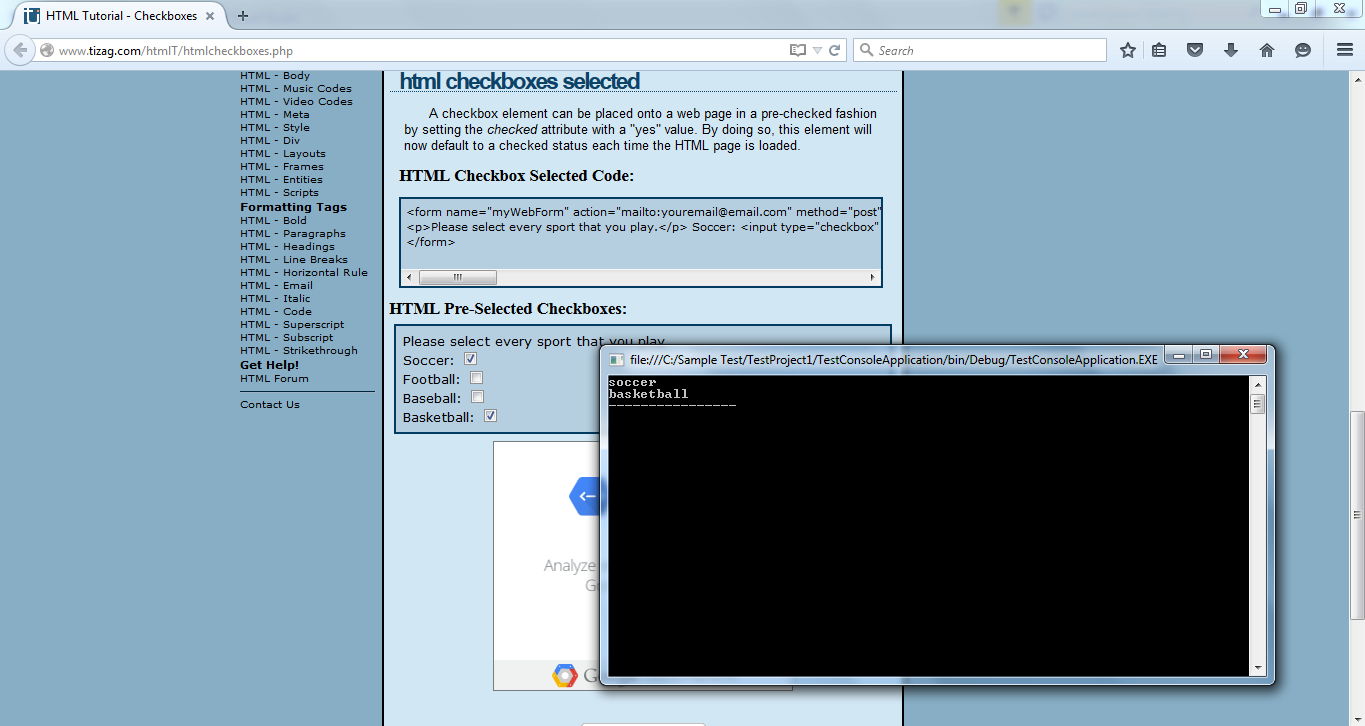
C# Webdriver - Fetch the names of checkboxes which are selected using 'Select' and 'Where' in a single LINQ statement.


Fetch the names of checkboxes which are selected using 'Select' and 'Where'.
using System;
using OpenQA.Selenium.Firefox;
using OpenQA.Selenium;
using System.Threading;
using System.Linq;


namespace TestConsoleApplication
{
    class Program
    {
        static void Main(string[] args)  
        {
            IWebDriver driver = new FirefoxDriver();
            driver.Manage().Window.Maximize();
            driver.Navigate().GoToUrl("http://www.tizag.com/htmlT/htmlcheckboxes.php");
            Thread.Sleep(3000);

            string xpath = "html/body/table[3]/tbody/tr[1]/td[2]/table/tbody/tr/td/div[6]/input";
            var list = driver.FindElements(By.XPath(xpath)).Where(p => p.Selected==true).Select(x => x.GetAttribute("value"));

            foreach(var text in list){
                Console.WriteLine(text);
            }
             
            Console.WriteLine("----------------");
            Console.ReadLine();

            driver.Close();
            driver.Quit();
            driver.Dispose();
        }
 
    }
}

Fetch the names of checkboxes which are selected without using 'Select' and 'Where'.
using System;
using OpenQA.Selenium.Firefox;
using OpenQA.Selenium;
using System.Threading;

namespace TestConsoleApplication
{
    class Program1
    {
        static void Main(string[] args)
        {

            IWebDriver driver = new FirefoxDriver();
            driver.Manage().Window.Maximize();
            driver.Navigate().GoToUrl("http://www.tizag.com/htmlT/htmlcheckboxes.php");
            Thread.Sleep(2000);

            string xpath = "html/body/table[3]/tbody/tr[1]/td[2]/table/tbody/tr/td/div[6]/input";
            var webElements = driver.FindElements(By.XPath(xpath));

            foreach (var webElement in webElements)
            {
                if(webElement.Selected==true){
                    Console.WriteLine(webElement.GetAttribute("value"));
                }               
            }

            Console.WriteLine("---------------");
            Console.ReadLine();

            driver.Close();
            driver.Quit();
            driver.Dispose();
        }
    }
}


Saturday, 22 August 2015

C# Webdriver - Fetch all visible URL's using 'IEnumerable' Select method.

Fetch all visible URL's using 'IEnumerable' Select method.
using System;
using OpenQA.Selenium.Firefox;
using OpenQA.Selenium;
using System.Threading;
using System.Collections.Generic;
using System.Linq;

namespace TestConsoleApplication
{
    class Program
    {
        static void Main(string[] args) 
        {
            IWebDriver driver = new FirefoxDriver();
            driver.Manage().Window.Maximize();
            driver.Navigate().GoToUrl("http://www.google.com");

            driver.FindElement(By.CssSelector("#lst-ib")).SendKeys("Webdriver");
            driver.FindElement(By.CssSelector("#lst-ib")).SendKeys(Keys.Return);
            Thread.Sleep(2000);

            var list = driver.FindElements(By.CssSelector("._Rm")).Select(x => x.Text);

            foreach(var text in list){
                Console.WriteLine(text);
            }
             
            Console.WriteLine("------------------------------------");
            Console.ReadLine();

            driver.Close();
            driver.Quit();
            driver.Dispose();
        }
 
    }
}

Fetch all visible URL's without using 'IEnumerable' Select method.
using System;
using OpenQA.Selenium.Firefox;
using OpenQA.Selenium;
using System.Threading;

namespace TestConsoleApplication
{
    class Program1
    {
        static void Main(string[] args)
        {
            IWebDriver driver = new FirefoxDriver();
            driver.Manage().Window.Maximize();
            driver.Navigate().GoToUrl("http://www.google.com");

            driver.FindElement(By.CssSelector("#lst-ib")).SendKeys("Webdriver");
            driver.FindElement(By.CssSelector("#lst-ib")).SendKeys(Keys.Return);
            Thread.Sleep(2000);

            var webElements = driver.FindElements(By.CssSelector("._Rm"));

            foreach (var webElement in webElements)
            {
                Console.WriteLine(webElement.Text);
            }

            Console.WriteLine("------------------------------------");
            Console.ReadLine();

            driver.Close();
            driver.Quit();
            driver.Dispose();
        }
    }
}


Thursday, 13 August 2015

Firepath - Inspect element by css

Prerequisite:
Firebug addon is already installed in firefox browser.
Firepath addon is already installed.

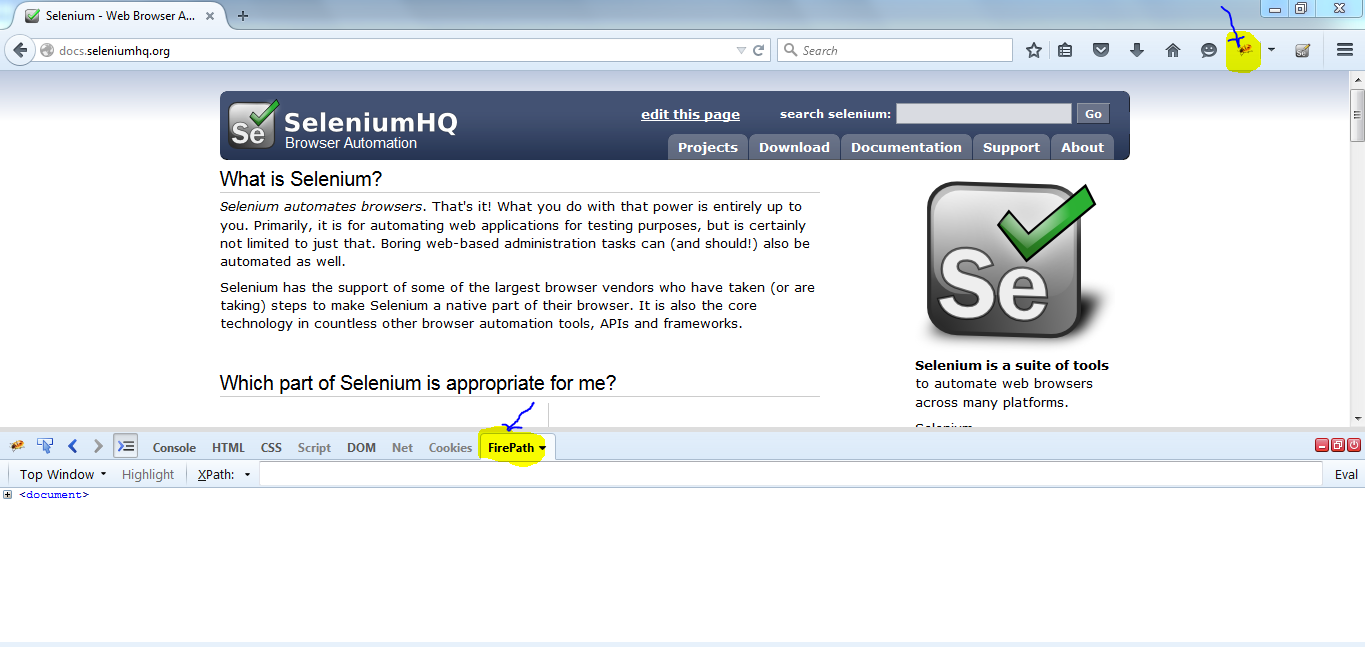
1. Navigate to the web page url,
    launch firebug addon..
2. Select 'css'

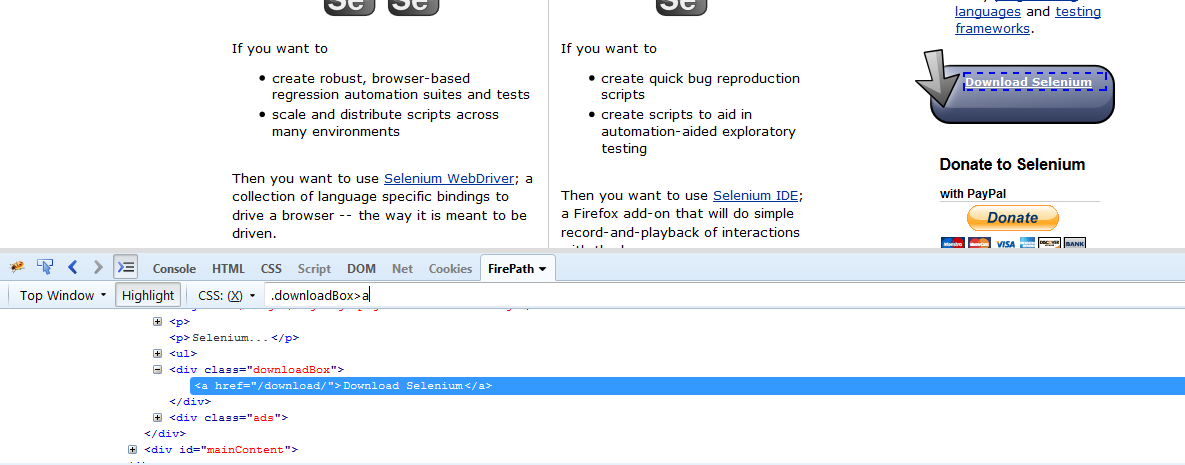
3. Click on the arrow icon to inspect the element,
    click the inspect icon(i.e. arrow icon) and move the mouse over the element to which you want to get the CSS locator. 


5. Re-verifying the css locator in selenium-ide (Prerequisite: Selenium IDE is already installed in firefox browser).
   launch the selenium-ide, stop the recording.
   copy the css locator and paste in selenium-ide.
   ex: .downloadBox>a

 Type 'css=' in target field.

6. click on 'Find' button in selenium-ide, element related to css locator is highlighted in the browser.

Note:
If the css locator is representing multiple elements in the browser.
Then css locator need to be modified, to uniquely identify identify the element.