Saturday, 5 December 2015

Python - Installing 'openpyxl' library.

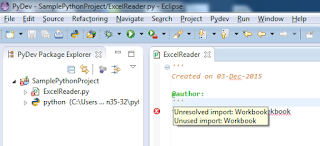
If 'openpyxl' library is not installed on your machine.


Navigate to 'Scripts' folder present in the python installation folder.
Run command 'pip install openpyxl' for installing latest openpyxl library.


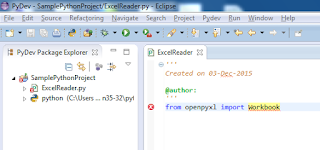
If there are no errors in the IDE, then 'openpyxl' library is installed successful on your machine.

Thursday, 3 December 2015

Fire-IE-Selenium Tool

Helps to get Xpath for IE browsers only,
but we can use most of the xpaths captured using 'Fire-IE-Selenium' tool to work with any other browser usign webdriver.

Tool uses excel based webbrowser.
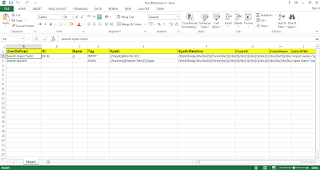
'Fire-IE-Selenium' tool captures the object locators for ID, Name, Tag, XPath, Xpath-Relative, CssPath, CssSubPath.

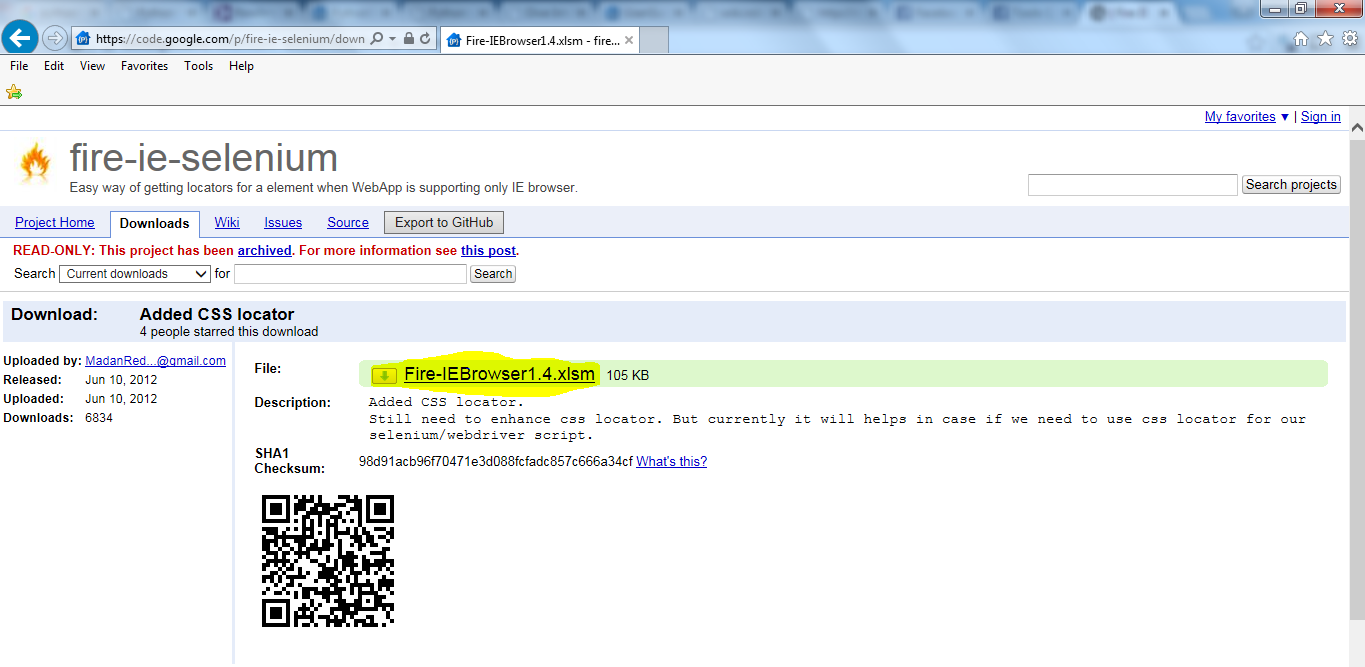
Download Fire-IE-Selenium Tool from https://code.google.com/p/fire-ie-selenium/downloads/list


Download and save the file

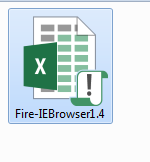
Once the file is downloaded in your machine,
double click on the downloaded file, it opens in excel sheet.
 Enable Editing. 

Enable  Content

Click on 'Proceed' button.


Enter url in 'URL' field and click on 'Load' button.

Mouser over on to the webelement and click the mouse right button.


Enter Object Name

Again perform the same steps (i.e. mouse over on search button and click on mouse right button) to capture the object locator for search button.
  

Click on close('X') button.

 Object Locators are shown for the web elements.

Note:
- Tool is carashing for some websites, in that case there is no support available.
- To work with 'Fire-IE-Selenium' tool, MS-Office should already installed in your machine.
  'Fire-IE-Selenium' tool is not working in machine, where ms-office is not installed(i.e. only OpenOffice is installed).
Tuesday, 1 December 2015

Appium Python - Executing 'Appium-Webdriver' automation script on mobile device

Demonstrating python automation script for 'EriBank' app and executing the automation script in mobile device using Eclipse IDE with Python.

Prerequisites:
- Java is installed.
- Set path for Java.
- Android SDK is installed.
- Set path for Android SDK.
- Appium Server is installed.
- Python is installed
- Eclipse IDE is installed.
- Install Pydev Extenstions for Eclipse IDE
- Install mobile device drivers.

  Refer below url's for installation/configuration.
  http://automation-home.blogspot.in/2015/05/appium-installation.html
  http://automation-home.blogspot.in/2014/12/python-installation.html
  http://automation-home.blogspot.in/2014/12/installing-pydev-extenstions.html
  http://automation-home.blogspot.in/2014/12/executing-simple-python-programs.html
  http://automation-home.blogspot.com/2015/12/installing-eribank-app-in-android-mobile.html

- Developer Options are enabled in mobile device
- USB Debugging is enabled in mobile device

Note: 
  'Eribank.apk' can be downloaded from 'http://code.google.com/p/eribank/downloads/list'

Below procedure  demonstrates installing Selenium and Appium packages in python:
Navigate to 'Scripts' folder present in the python installation folder.
Run command 'pip install selenium' for installing latest selenium package.

Run command 'pip install Appium-Python-Client' for installing latest selenium package.


Place the 'EriBank.apk' file in python project.


Sample Program:
'''
Created on 01-Dec-2015

@author:
'''
import os
import unittest
from appium import webdriver
from time import sleep

class EriBankTest(unittest.TestCase):

    def setUp(self):
        "Setup for the test"
        desired_caps = {}
        desired_caps['platformName'] = 'Android'
        #desired_caps['platformVersion'] = '4.2'
        desired_caps['deviceName'] = 'ZX1B32CXGN'
        desired_caps['app'] = os.path.abspath(os.path.join(os.path.dirname(__file__),'apps/EriBank.apk'))
        desired_caps['appPackage'] = 'com.experitest.ExperiBank'
        desired_caps['appActivity'] = '.LoginActivity'
        self.driver = webdriver.Remote('http://localhost:4723/wd/hub', desired_caps)
        pass

    def tearDown(self):
        "Tear down the test"
        self.driver.quit()
        pass

    def testLoginAndLogout(self):
        self.driver.find_element_by_id("com.experitest.ExperiBank:id/usernameTextField").send_keys("company")
        self.driver.find_element_by_id("com.experitest.ExperiBank:id/passwordTextField").send_keys("company")
        
        self.driver.find_element_by_id("com.experitest.ExperiBank:id/loginButton").click()
        sleep(5)

        self.driver.find_element_by_id("com.experitest.ExperiBank:id/logoutButton").click()
        sleep(5)
        pass

if __name__ == "__main__":
    import sys;sys.argv = ['', 'Test.EriBankTest']
    unittest.main()

Before running the python-appium script, run the command 'adb devices' in command prompt and verify android mobile device is detected by android sdk on your machine.

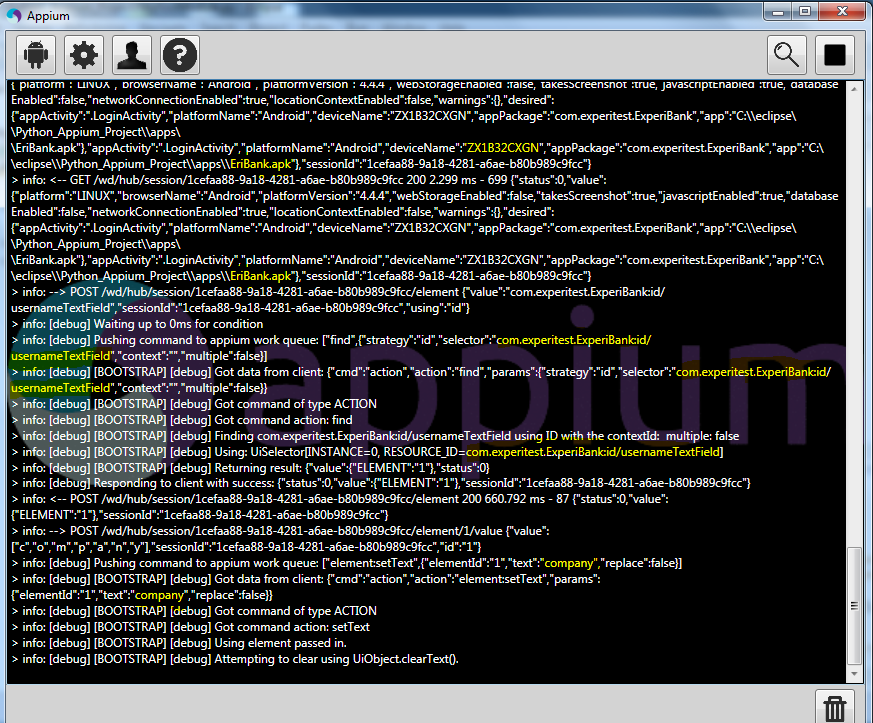
Start 'Appium Server' before running the script.


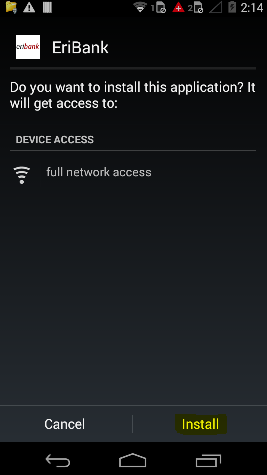
Installing 'Eribank' app in android mobile.

'Eribank.apk' can be downloaded from 'http://code.google.com/p/eribank/downloads/list'

Some times 'EriBank' installation is blocked, 
you need to change settings to install 'EriBank' app.

Check the check box for 'Unknown sources'.


Once the 'Eribank' app is installed uncheck the check box for 'Unknown sources'.