Below steps guides you for executing the java webdriver script with webdriver version '3.0.0-beta2'.
Prerequisite:
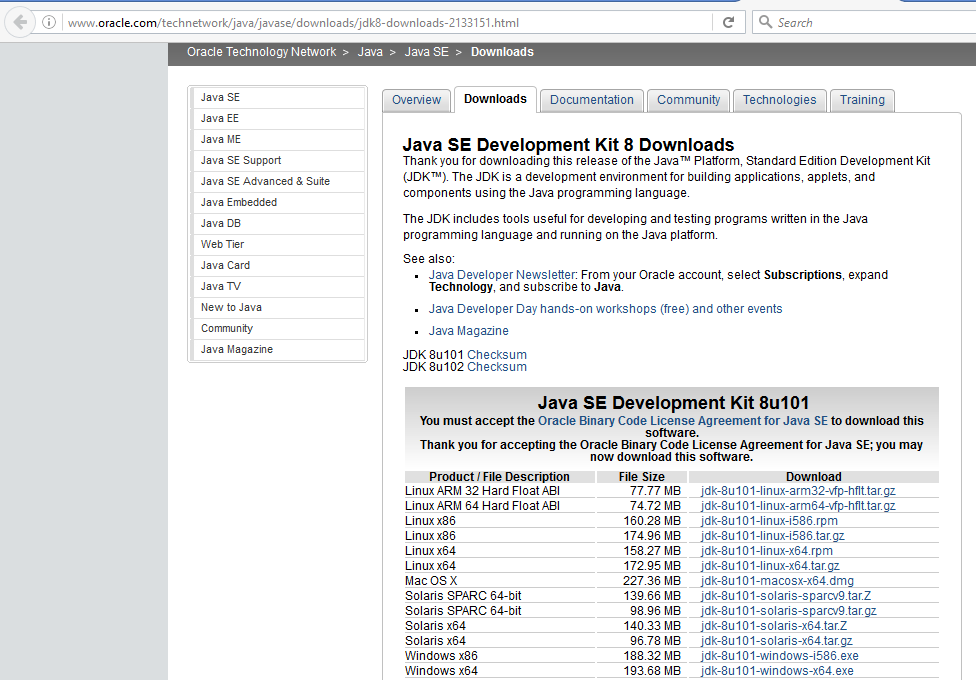
- To work with webdriver version '3.0.0-beta2', requires java 1.8 version installed and java path is set to java 1.8.
For installing java 1.8 and path setting, refer link http://automation-home.blogspot.com/2016/08/java-8-installation-and-path-setting.html
- Eclipse IDE is already installed.
Download java webdriver client libraries:
Download java webdriver libraries from http://www.seleniumhq.org/download


Sample Program:
import org.openqa.selenium.WebDriver;
import org.openqa.selenium.firefox.FirefoxDriver;
public class WSTest {
public static void main(String[] args) throws InterruptedException {
WebDriver driver = new FirefoxDriver();
// driver.manage().window().maximize();
driver.get("http://www.google.com");
Thread.sleep(3000);
driver.close();
driver.quit();
}
}


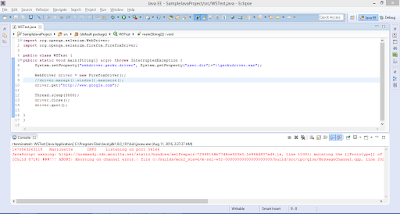 You can observe the 'JavaScript warning' in console, but the script is executed successfully.
JavaScript warning: https://normandy.cdn.mozilla.net/static/bundles/selfrepair-72948156b77d6ce320e0.1e946d807ad4.js, line 11001: mutating the [[Prototype]] of an object will cause your code to run very slowly; instead create the object with the correct initial [[Prototype]] value using Object.create


Prerequisite:
- To work with webdriver version '3.0.0-beta2', requires java 1.8 version installed and java path is set to java 1.8.
For installing java 1.8 and path setting, refer link http://automation-home.blogspot.com/2016/08/java-8-installation-and-path-setting.html
- Eclipse IDE is already installed.
Download java webdriver client libraries:
Download java webdriver libraries from http://www.seleniumhq.org/download

Click 'Download' button for 'java' to download the selenium webdriver java client libraries.
Extract the downloaded zip file:
Extract the downloaded 'selenium-java-3.0.0-beta2.zip' file.


Open the Eclipse IDE:
Right click on the project and select 'Properties'.

set the path for jar files present in the extracted zip file 'selenium-java-3.0.0-beta2.zip'.

import org.openqa.selenium.WebDriver;
import org.openqa.selenium.firefox.FirefoxDriver;
public class WSTest {
public static void main(String[] args) throws InterruptedException {
WebDriver driver = new FirefoxDriver();
// driver.manage().window().maximize();
driver.get("http://www.google.com");
Thread.sleep(3000);
driver.close();
driver.quit();
}
}
Execute the script.

Thread.sleep() is added for demo, in real time projects its not recommended to use Thread.sleep().


'UnsupportedClassVersionError' is occurred while executing the script,
even after java 1.8 is installed and path setting is done in environment variables.
Verify Eclipse IDE is mapping to Java 1.8.


If java version is not 1.8, then update java version to 1.8


If eclipse ide is mapping to older version of java, then update it to java 1.8


Re Execute the script:


Exception in thread "main" java.lang.IllegalStateException: The path to the driver executable must be set by the webdriver.gecko.driver system property; for more information, see https://github.com/mozilla/geckodriver. The latest version can be downloaded from https://github.com/mozilla/geckodriver/releases
.......
........
will be displayed.
Re-execute the script:
Re-execute the script after performing below steps
Download the geckodriver from https://github.com/mozilla/geckodriver/releases

Extract the downloaded 'geckodriver-v0.10.0-win64.zip' file and copy the 'geckodriver.exe' in your webdriver project.
Add below one line code in your webdriver automation script.
System.setProperty("webdriver.gecko.driver", System.getProperty("user.dir") + "\\geckodriver.exe");
Sample Program:
import org.openqa.selenium.WebDriver;
import org.openqa.selenium.firefox.FirefoxDriver;
public class WSTest {
public static void main(String[] args) throws InterruptedException {
System.setProperty("webdriver.gecko.driver", System.getProperty("user.dir") + "\\geckodriver.exe");
WebDriver driver = new FirefoxDriver();
// driver.manage().window().maximize();
driver.get("http://www.google.com");
Thread.sleep(3000);
driver.close();
driver.quit();
}
}
import org.openqa.selenium.firefox.FirefoxDriver;
public class WSTest {
public static void main(String[] args) throws InterruptedException {
System.setProperty("webdriver.gecko.driver", System.getProperty("user.dir") + "\\geckodriver.exe");
WebDriver driver = new FirefoxDriver();
// driver.manage().window().maximize();
driver.get("http://www.google.com");
Thread.sleep(3000);
driver.close();
driver.quit();
}
}
Re-execute the script now.

JavaScript warning: https://normandy.cdn.mozilla.net/static/bundles/selfrepair-72948156b77d6ce320e0.1e946d807ad4.js, line 11001: mutating the [[Prototype]] of an object will cause your code to run very slowly; instead create the object with the correct initial [[Prototype]] value using Object.create
Check the Firefox version

Update the Firefox version.
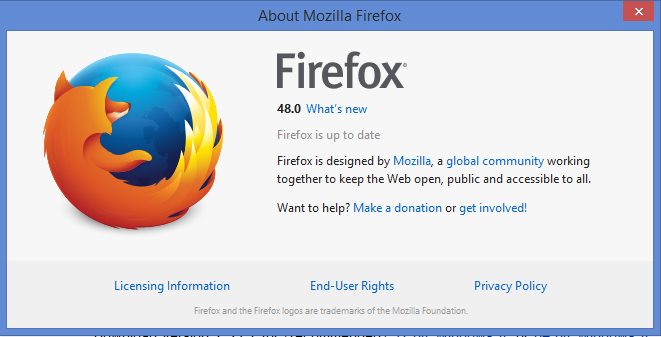
Re-execute the script again, after updating the Firefox version

Observe there is no 'JavaScript warning' in console and script is executed successfully(i.e. launching
the firefox browser, access url http://www.google.com and close browser).
By default firefox browser is maximized with out using the statement 'driver.manage().window().maximize();'.
Summary: To work with latest version of webdriver 3.0.0-beta2, it requires.
- Install Java 1.8.
- Open eclipse ide and update the JDK compiler compliance level to java 1.8.
- Download webdriver java(3.0.0-beta2) client libraries and set it in java build path.
- Download the geckodriver.exe and set it System.setProperty using 'webdriver.gecko.driver'.
- Upgrade the Firefox version to latest version.
- By default firefox browser is maximized(i.e no need to use statement driver.manage().window().maximize();)