Wednesday, 16 December 2015

Androidscreencast

Record your application navigation's performed on your real android device directly in your PC.

 Pros:
- No need of installing recording software's or applications on your real device.
   Recording navigation steps on your real device requires extra memory to store the recorded video's
- 'androidscreencast' tool is light weight, since it is jnlp file.
- Records real device actions on your PC and stores the recorded video's on your PC.

Cons:
- Requires java jdk and android sdk installed.
- 'androidscreencast' has low refresh rate.

Prerequisite:
1. JDK 

 
3. Install Android SDK

4. Set the Environment variable for Android SDK.
    http://automation-home.blogspot.com/2015/12/set-path-for-android-sdk.html

5. Enable Developer options & usb debugging in mobile device.
    http://automation-home.blogspot.com/2015/12/enable-developer-options.html
 
6 Install Phone Drivers from below url
   If Phone drivers are not available in above url, then you can install it using PdaNet http://pdanet.co/

7. Connect your android mobile to the system using usb.
  
Launch  'androidscreencast'.
1. Download 'androidscreencast.jnlp' from https://code.google.com/p/androidscreencast/

2. Click on 'androidscreencast.jnlp' file to launch 'androidscreencast'.

3. If java is blocking to launch 'androidscreencast.jnlp', then access java control panel.
   Click on 'Security' tab and add url 'http://androidscreencast.googlecode.com' to the Site List.
   Now click on 'androidscreencast.jnlp' file to launch 'androidscreencast'.   

Watch Demo
 

Monday, 14 December 2015

Enable Developer Options

Below are the steps to enable 'Developer Options' on Android.

1. Open
    Settings > About device > Scroll down to 'Build number'.
2. Tap 'Build number' for seven times to enable developer options
      Finally you can see message "Developer mode has been enabled." on your android screen.
3. Go back to 'Settings', you can see the 'Developer options' as part of settings.
4. Now enable 'USB debugging'.
     Settings > Developer options
     Check the check box for USB debugging, to enable the USB debugging.

Watch Demo

Friday, 11 December 2015

Ruby - Installation

Download the Ruby installer from http://rubyinstaller.org/download


Once the ruby installer is downloaded, click on the installation file to install ruby.


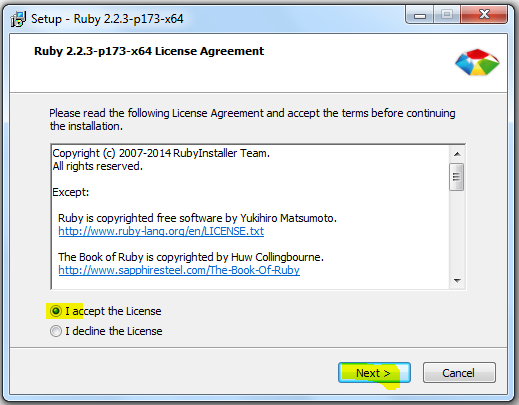
Accept the License and click on 'Next' button.


Wednesday, 9 December 2015

Java - Call python script functions from java code

Sample Program:

Java Code: SampleJsTest .java
import java.io.IOException;
import java.nio.charset.StandardCharsets;
import java.nio.file.Files;
import java.nio.file.Paths;

import javax.script.Invocable;
import javax.script.ScriptEngine;
import javax.script.ScriptEngineManager;
import javax.script.ScriptException;

public class SampleJsTest {

public static void main(String[] args) throws NoSuchMethodException, ScriptException, IOException {

//create a script engine manager
ScriptEngineManager manager = new ScriptEngineManager();

//create a PythonScript engine
ScriptEngine engine = manager.getEngineByName("python");

engine.eval(Files.newBufferedReader(Paths.get("C:\\eclipse\\SamplePythonProject\\TestModule.py"), StandardCharsets.UTF_8));

Invocable inv = (Invocable)engine;
int a = (int) inv.invokeFunction("add", '3', '2');
System.out.println(">>>"+a);
}
}

Python script: TestModule.py
def add(c, d):
    a = int(c)+int(d)
    return a;


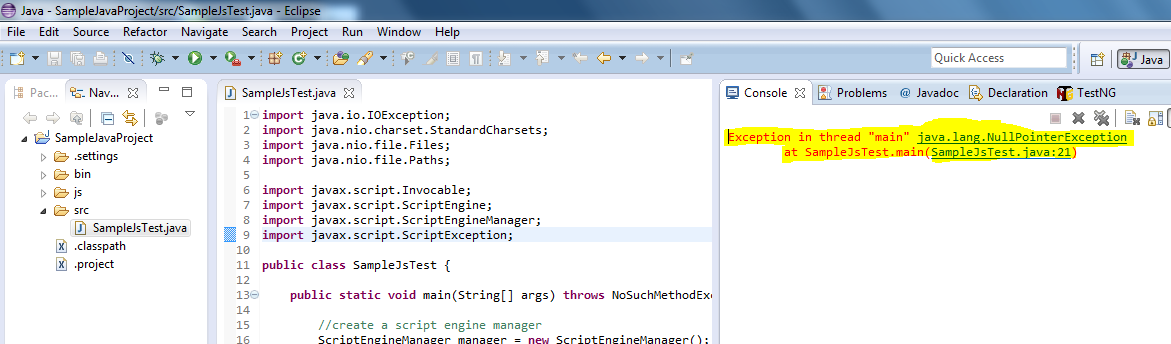
Execute the java code.

Place jython-standalone-<<version>>.jar in build path, to avoid the run time exception.

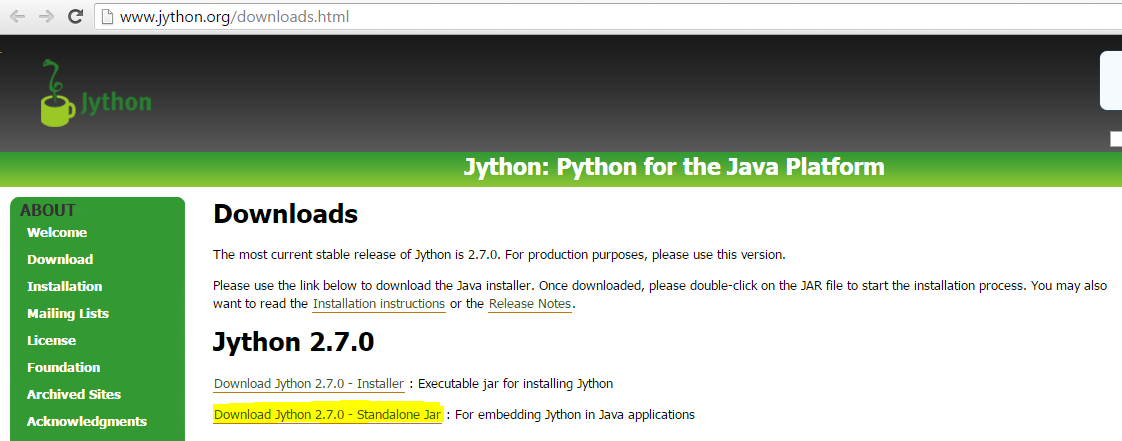
Download "jython-standalone-<<version>>.jar" from http://www.jython.org/downloads.html


Now set the java build path for downloaded jar file.


Now execute the java code again.


To avoid error message "console: Failed to install" displayed in console.
Add the "VM agruments" as "-Dpython.console.encoding=UTF-8", and re-execute the program again.


Note:
For executing the python script function from java code using above procedure, doesn't require python software installed on your machine.

Java - Call ruby script functions from java code

Sample Program:

Java Code: SampleJsTest .java
import java.io.IOException;
import java.nio.charset.StandardCharsets;
import java.nio.file.Files;
import java.nio.file.Paths;

import javax.script.Invocable;
import javax.script.ScriptEngine;
import javax.script.ScriptEngineManager;
import javax.script.ScriptException;

public class SampleJsTest {

public static void main(String[] args) throws NoSuchMethodException, ScriptException, IOException {

//create a script engine manager
ScriptEngineManager manager = new ScriptEngineManager();

//create a RubyScript engine
ScriptEngine engine = manager.getEngineByName("ruby");

engine.eval(Files.newBufferedReader(Paths.get("C:\\eclipse\\RubyDemoProject\\Test.rb"), StandardCharsets.UTF_8));

Invocable inv = (Invocable)engine;
long a = (long) inv.invokeFunction("add", "3", "2");
System.out.println(">>>"+a);

}

}

Ruby script: Test.rb
def add (var1, var2)
   return var1.to_i + var2.to_i
end


Test.rb - ruby file.


Execute the java program.


Place jruby.jar in build path, to avoid the run time exception.

Download jruby.jar from http://jruby.org/download


Extract the downloaded zip file.

Now set the java build path for 'jruby.jar'.


Now execute the java program again, after setting the build path for 'jruby.jar'.


Note:
- For executing the ruby script function from java code using above procedure, doesn't require ruby software installed on your machine.
- Using above procedure java code passes two int values to the ruby script function, but result is returned as long value.

Execute python commands from command prompt

Prerequisite:
Python is already installed
Python Installation http://automation-home.blogspot.in/2014/12/python-installation.html

PATH is set for Python.
Set PATH for Python in Windows OS http://automation-home.blogspot.com/2015/12/python-seeting-up-path-for-python-in.html

Click 'Windows' + 'R'.


Enter 'cmd' in command prompt.


Command prompt is opened.


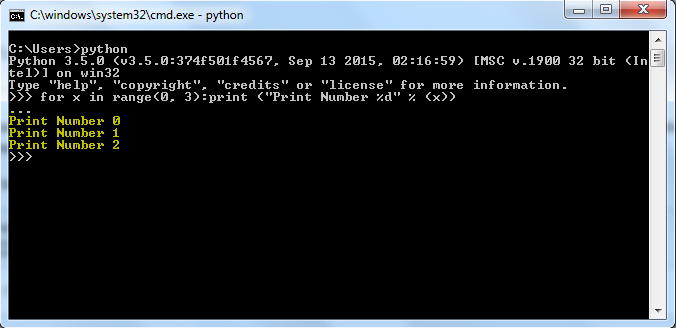
Type 'python' in command prompt.


Now type python command in command prompt and press enter key.


python command is executed, you can see the result of executed python command.

Python - Set PATH for Python in Windows OS

Python PATH should be stored in the environment variable of the operating system,
so that the python scripts present in any drive/folder can be executed.

Prerequisite:
Python is already installed
Python Installation http://automation-home.blogspot.in/2014/12/python-installation.html

Right click on 'Computer' icon and click 'Properties'.


Click 'Advanced System Settings'.
Click on 'Advanced' tab.
Click on 'Environment Variables' button.


Click ''New' button under 'System Variable'.
Variable name: 'PYTHON_HOME'
Variable value: <<Path of python installation folder>>
                         ex: C:\Users\<<user>>\AppData\Local\Programs\Python
Click 'OK' button.


Select 'Path' in 'System variables'.
Click on 'Edit' button.
Variable value: <<already existing path>>;%PYTHON_HOME%;<<sub folder having python version>>
                     eg: %PYTHON_HOME%\Python35-32;
Click 'OK' button.